Loading...

Azure Quick Links

Fabric Projects

Fabric Data Modeling & Report Deployment Guide

This guide walks you through building a complete end-to-end analytics solution using Microsoft Fabric and Power BI. You will create a semantic model, define relationships, load and transform data using Dataflow Gen2, build measures, and validate your model with reports. Finally, you will connect Power BI Desktop, publish content to Fabric, and distribute reports through Apps for end users.

Part 2

*

This guide is designed to be followed in sequence:

Part 1 - Fabric Data Engineering & Analytics Pipeline

Part 2 - Fabric Data Modeling & Report Deployment Guide

*

All files used in this project are located here

*

Task Details

1. Create semantic model.
2. Create relationship between tables.
3. Create a simple report to validate the relationships.
4. Add the sensor_data.json file to the semantic model.
5. Use Dataflow Gen2 to load data from a view and store it as a Delta table in a Lakehouse.
6. Create measure.
7. Connect Power BI Desktop to the Fabric semantic model.
8. Create a visual in Power BI Desktop and publish it to Fabric.
9. Connect the SQL endpoint to Power BI Desktop.
10. Create a report automatically.
11. Share your report with users through Apps.

*

Steps

Create semantic model.

In Microsoft Fabric, a semantic model is a crucial layer that sits on top of your data stored in a Lakehouse or Warehouse. It defines how tables relate to each other and how data is structured for reporting. By creating a semantic model, you can establish relationships between tables, build measures, and prepare your data for accurate and efficient analysis in Power BI.

Note: You can create a semantic model from a lakehouse and from an SQL analytics endpoint.

Lakehouse vs SQL Analytics Endpoint (Semantic Model)

  • Lakehouse connection reads directly from Delta tables in OneLake and supports DirectLake mode for high-performance, large-scale analytics. It is best when data is already clean and does not require complex transformations.
  • SQL Analytics Endpoint connection uses a relational SQL layer (T-SQL), allowing views, joins, and schema design, making it more suitable for structured reporting and building a star schema.

Key difference:

  • Lakehouse = raw, high-performance data access
  • SQL Endpoint = structured, SQL-modeled data for reporting

*

1. Upload products.csv and convert it into a Delta table.

In the Lakehouse, expand Files, click the … (More options) menu, select Upload, and upload the file.

*

*

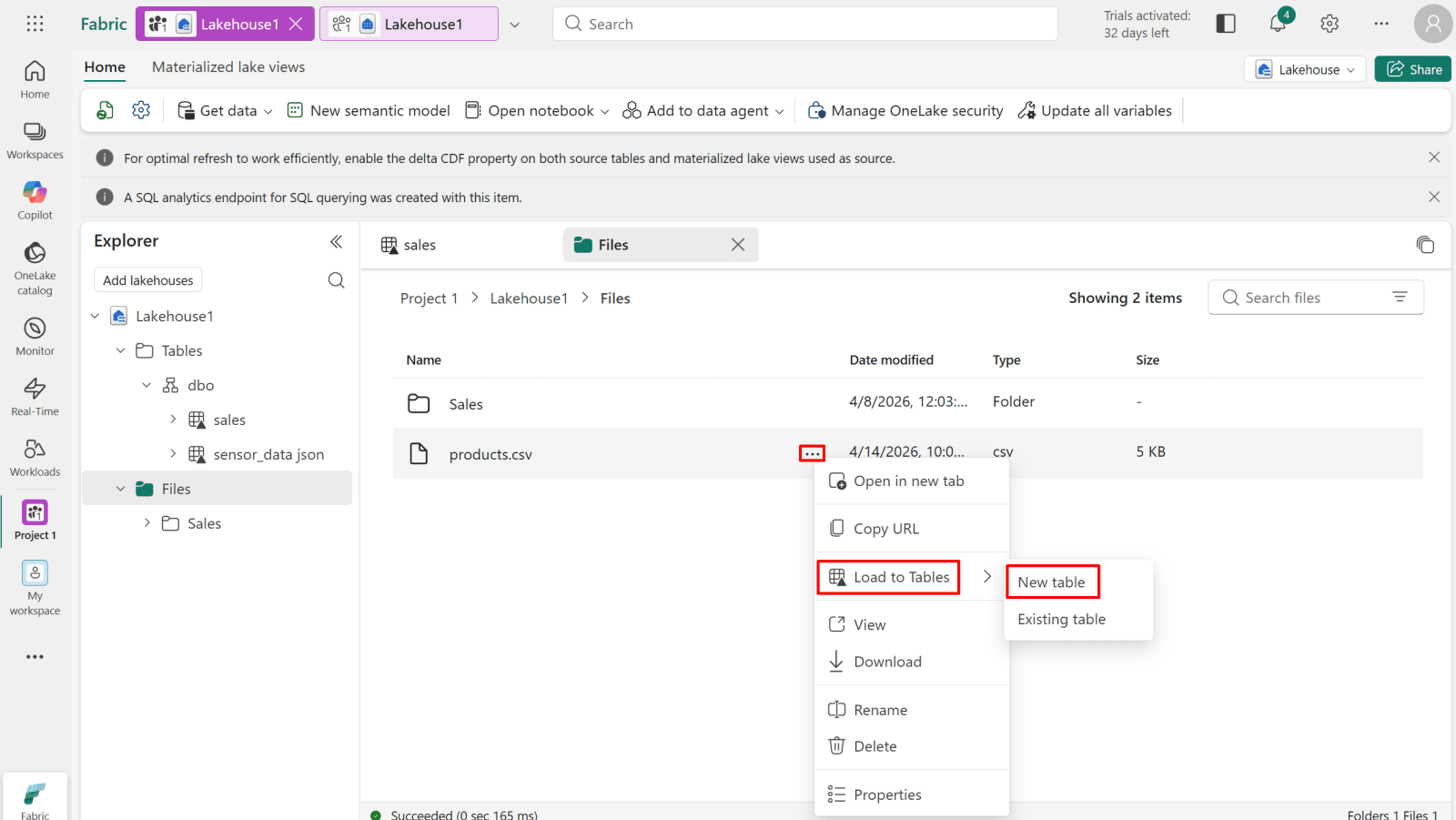
2. Expand the options for products.csv and load data into a new table.

Click the … (More options) next to products.csv, then select Load to new table.
*

*

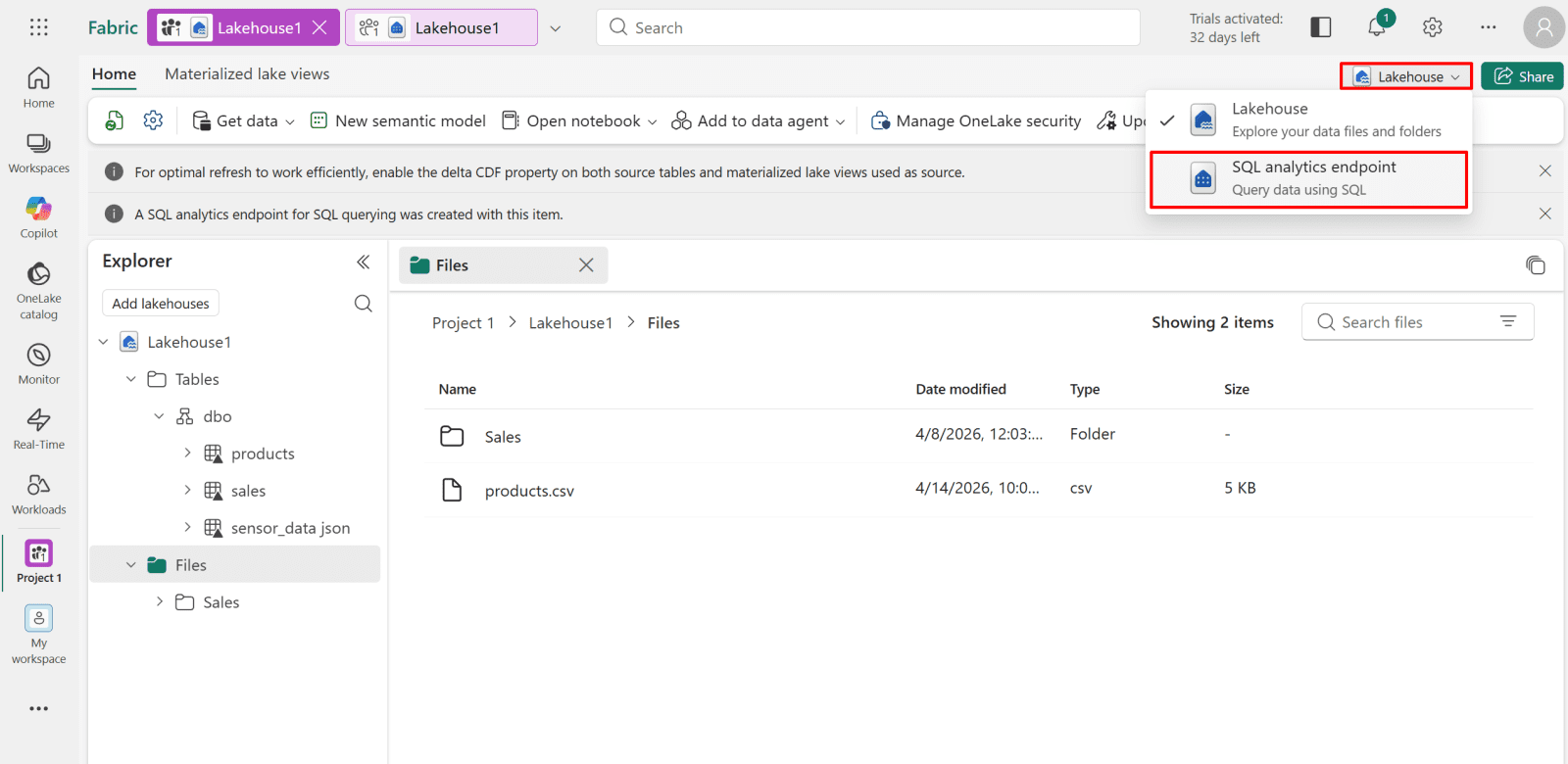
3. From your Lakehouse, switch to the SQL Analytics Endpoint.
*

4. Create semantic model from SQL analytics endpoint.

Note: You can create semantic model from lakehouse and from SQL analytics endpoint.

Lakehouse vs SQL Analytics Endpoint (Semantic Model)

  • Lakehouse connection reads directly from Delta tables in OneLake and supports DirectLake mode for high-performance, large-scale analytics. It is best when data is already clean and does not require complex transformations.
  • SQL Analytics Endpoint connection uses a relational SQL layer (T-SQL), allowing views, joins, and schema design, making it more suitable for structured reporting and building a star schema.

Key difference:

  • Lakehouse = raw, high-performance data access.
  • SQL Endpoint = structured, SQL-modeled data for reporting.

*

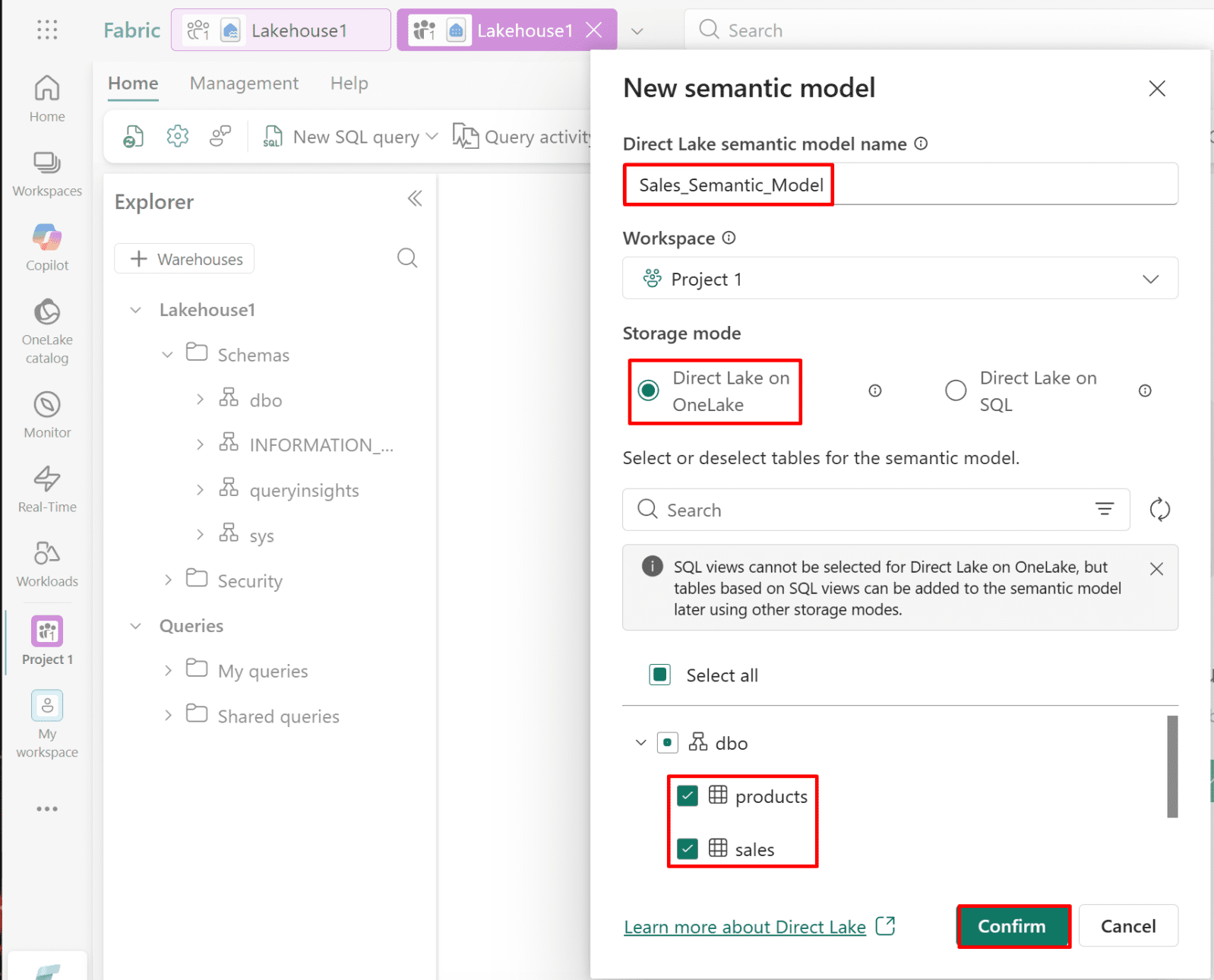
5. Provide a name for the semantic model and select the tables to include in the model.

When to Select Each Storage Model (Fabric Semantic Model)

  • Direct Lake (OneLake)
    Select when you need maximum performance on large datasets, data is already stored as Delta tables in OneLake, and you want no data copy or import with near real-time analytics.
  • Direct Lake (DirectQuery) (SQL Analytics Endpoint)
    Select when you need SQL-based modeling, such as views, joins, and transformations, or when working with complex relational structures (star schema) that require controlled querying.
*

6. Once complete, you will be redirected to the semantic model.

*

Create a relationship between tables.

In this step, you will define relationships between tables in the semantic model to ensure data is properly connected. This allows Power BI to understand how tables relate to each other, enabling accurate filtering, aggregation, and reporting across the dataset.

1. Create a one-to-many relationship from products to sales. (One product can have many sales.)

  • Drag and drop the Product_ID column from the Products table onto the corresponding Product_ID column in the Sales table.

*

2. Ensure the relationship is set to one-to-many (One product can have many sales) from Products to Sales, then click Save.

Note: Fabric saves changes automatically.

*

*

Create a simple report to validate the relationships.

1. From your workspace or semantic model, create a report.

From the semantic model.

  • Click File then click Create new report.

*

From workspace.

  • Click the … (More options) next to semantic model, and then select Create report.

*

2. Test the relationships.

  • Select stacked column chart
  • Drag and drop Product_Name column from products table to the X-axis
  • Drag and drop Total_Price column from sales table to the X-axis

As we can see, the relationship is working correctly, since we are able to use data from two related tables within a single visual.

*

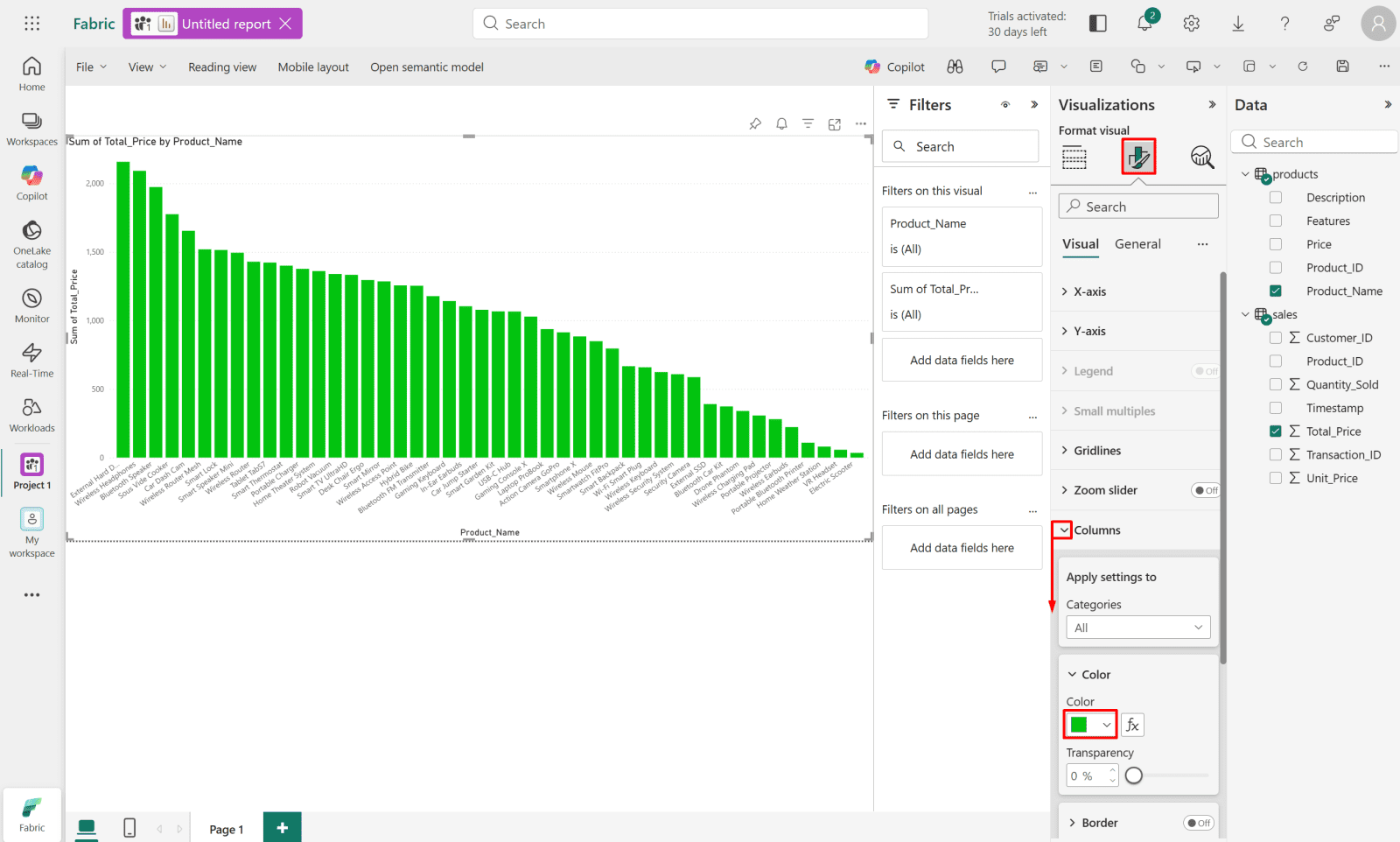
3. Change column color.

Switch to the “Format your visual” tab and change the columns color.
*

4. After saving your report, it will appear in your workspace.

Add the sensor_data.json file to the semantic model.

In this step, we will add the sensor_data.json file to the semantic model so its data becomes available for reporting and analysis. This allows the information to be used in Power BI and other Microsoft Fabric reporting tools.

*

1. Select the semantic model from your workspace.

*

2. Open semantic model.

*

3. Switch to editing mode.

*

4. You need to add the missing tables manually to your semantic model.

  • Click "Edit tables."

*

5. Select tables that you want to add and click confirm.

Select:

  • sensor_data_json
  • Confirm

*

*

Use Dataflow Gen2 to load data from a view and store it as a Delta table in a Lakehouse.

In this step, we use Dataflow Gen2 in Microsoft Fabric to ingest data from an existing view, apply transformations, and load it into a Lakehouse. Once loaded, the data is automatically stored in Delta format, making it ready for analytics, reporting, and further processing within Fabric.

*

1. Move the total_sales table from Views to the Lakehouse using Dataflow Gen2.

  • Go to your Workspace.
  • Create a new item: Dataflow Gen2.

*

2. Give the dataflow a name, then click Create.

*

3. In Dataflow Gen2, click Get data.

*

4. Select Lakehouse as your data source.

*

5. Select the table you want to transform into a Delta table.

*

6. Make sure the destination is set to the Lakehouse1 table.

*

7. Click Save, then Run & Close.

*

8. You can now see Total_sales as a Delta table under the Tables section in your Lakehouse.

*

9. Switch to the SQL analytics endpoint view.

*

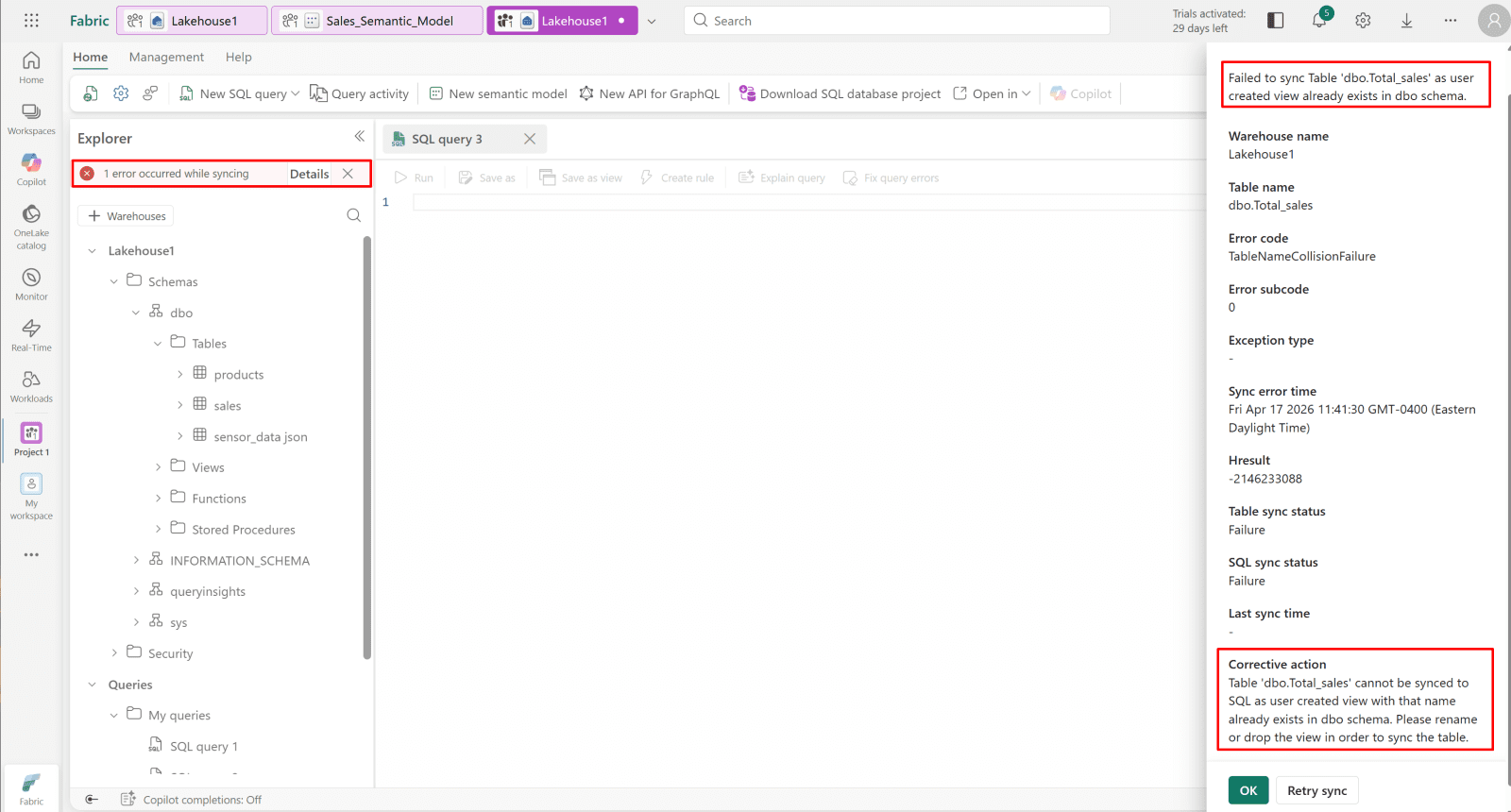
10. You may encounter the following error: “Failed to sync Table 'dbo.Total_sales' as a user-created view, already exists in the dbo schema.”

*

11. Drop the existing view.

Even if it is not visible in the list, the SQL endpoint metadata still recognizes it.

Open a new SQL query.

Copy command

Run the following command: DROP VIEW IF EXISTS dbo.Total_sales;

*

*

12. You can now add Total_sales to your model.

*

Create a measure.

Measures allow you to perform dynamic calculations on your data, enabling deeper analysis and more meaningful insights within your reports.

Measures in Power BI can improve performance when they use efficient DAX functions (like SUM, COUNT, AVERAGE) because they are calculated on demand and do not store data in the model. However, poorly written measures using heavy row-by-row calculations (like complex SUMX or FILTER) may negatively impact performance, especially on large datasets.

1. Select the semantic model from your workspace.

*

2. Open semantic model.

*

3. Switch to edit mode.

*

4. Navigate to the Sales table, click the ellipsis (...), and then select New measure.

*

5. The measure will appear under the Sales table as a calculated item.

*

6. Create a measure that calculates the total revenue after a 20% discount on every sale.

Copy command

Enter the measure: Sale Price = SUMX(sales, sales[Total_Price] * 0.8)

*

7. Open your report from your workspace.

*

8. Switch to edit mode.

*

9. Switch your current visual to a clustered bar chart to free up canvas space for the sale price visual.

*

10. Create column chart

  • Select column chart
  • Drag and drop Sale Price calculated measure from sales table to the Y-axis
  • Drag and drop Total_price column from sales table to the Y-axis

Note: The chart shows the total revenue after a 20% discount on every sale.

*

11. Create a new measure in the sales table.

*

12. Create a measure that shows average sale price vs a target value (Sale Price Target = 30000). Instantly tells you if you're above or below goal.

Enter the measure: Sale Price Target = 30000

*

13. Go back to your report and select the KPI card chart.

Create a KPI card that shows average sale price vs a target value.

  • Drag and drop Sale Price calculated measure from the sales table to the Value field.
  • Drag and drop Sale Price Target calculated measure from the sales table to the Target field.
  • Drag and drop the Timestamp column from the Total_sales table to the Trend axis field.

It shows:

  • 37.04K - your total Sale Price (in green, meaning it's good)
  • Goal: 30000 (+23.47%) - you're 23% above your target

*

Connect Power BI Desktop to the Fabric semantic model.

This step connects Power BI to the Fabric semantic model so you can use your data for reporting and analysis.

1. From Power BI Desktop, click Get Data, then select Power BI semantic model.

*

2. Provide your Fabric user email and password.


*

3. Select your semantic model and click connect.

*

4. Now you can create reports using your Power BI desktop.

Create a visual in Power BI Desktop and publish it to Fabric.

This step demonstrates how to build a visual in Power BI Desktop and publish it to Microsoft Fabric for sharing and further analysis.

Create a visual in Power BI Desktop.

  • Drag and drop the Product_Name column from the products table to the X-axis field.
  • Drag and drop the Total_Price column from the sales table to the Column y-axis field.
  • Drag and drop the Sale price calculated measure from the sales table to the Column y-axis field as a second value.
  • Drag and drop the Quantity_Sold column from the sales table to the Line y-axis field.


Note: This chart combines stacked columns and a line to show two things at once - the bars show how Total_Price and Sale_Price break down per product (which products make the most revenue), while the orange line tracks Quantity_Sold using a separate scale on the right, so you can instantly see whether a product sells well because it's cheap and high-volume, or expensive and low-volume.

*

2. Save your visual. as .pbix file on your local system.

Note: Fabric reports built on Lakehouse/DirectLake can't be downloaded as .pbix because the data lives in OneLake, not embedded in the file. Microsoft restricts this to protect the data architecture.

  • Click "File" then "Save as."

*

  • Name the visual and click Save.

*

3. Publish your report to the workspace.

  • Click Publish, select the workspace, then click Select.

*

*

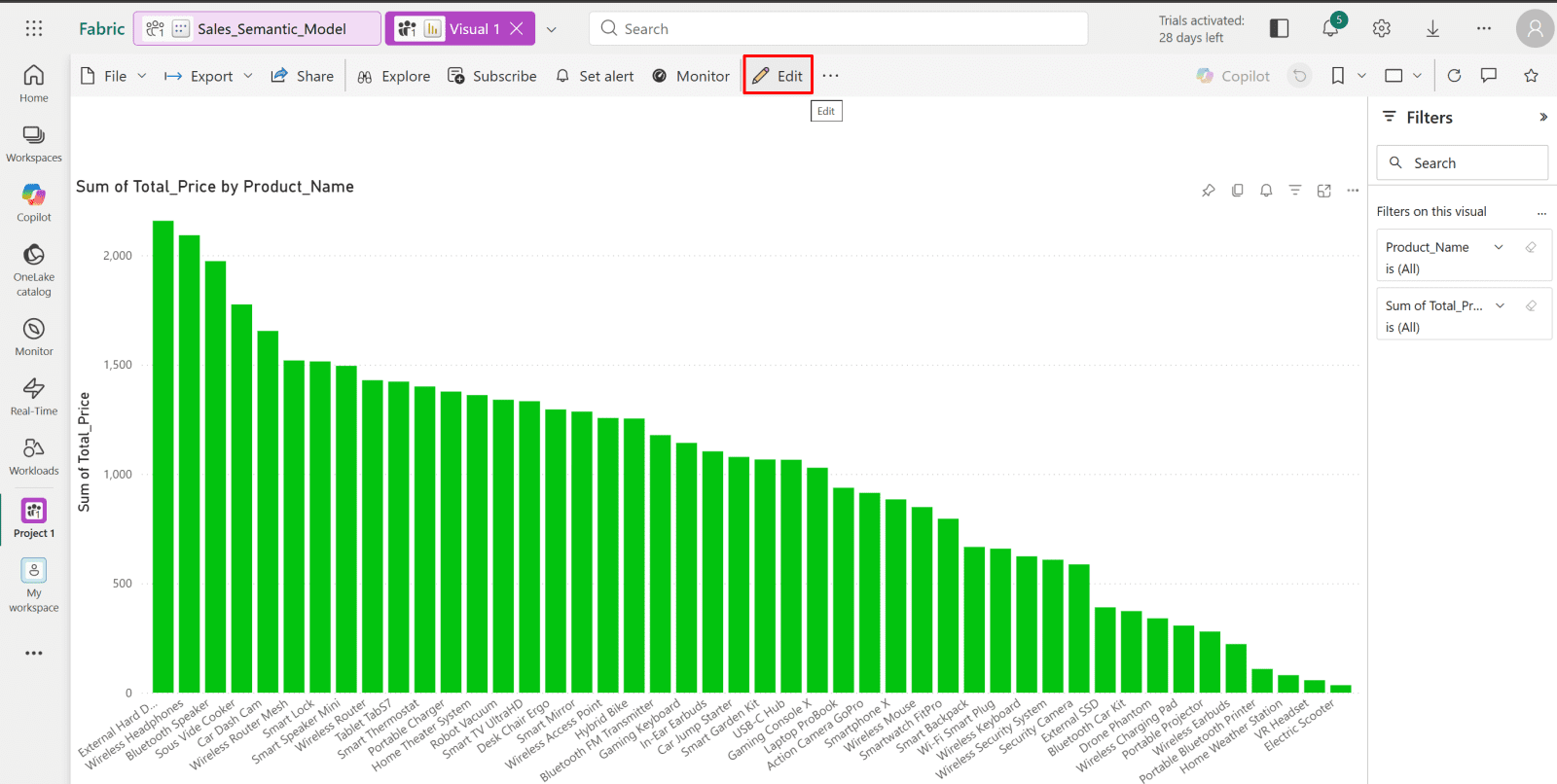
4. Make sure the report is published to fabric.

  • Go to your Fabric workspace and click the published report.

*

*

Connect the SQL endpoint to Power BI Desktop.

This step shows how to connect the SQL endpoint to Power BI Desktop so you can query and analyze your Fabric data.

*
1. Get Your Connection String from Fabric.

  • Go to Microsoft Fabric → your Workspace → open the Lakehouse SQL Analytics endpoint.

*

2. Click Settings (gear icon) → SQL endpoint connection string and copy the string.

*

3. Launch Power BI Desktop on your machine.

  • Go to Home → Get Data
  • Choose SQL Server database
  • Click Connect

*

4. In Server, paste your Fabric SQL Analytics Endpoint server name and click OK.

example: XXXX.datawarehouse.fabric.microsoft.com

*

5. Select Microsoft account, then log in as Fabric user.


*

4. Select the data you want to work with, then click Load.

*

5. After connecting to a Fabric Lakehouse, you can query, analyze, and build Power BI reports/dashboards from the data, but you cannot modify it.

Create a report automatically.

This step shows how Power BI can automatically generate a report based on your connected data, giving you a quick starting point for analysis.

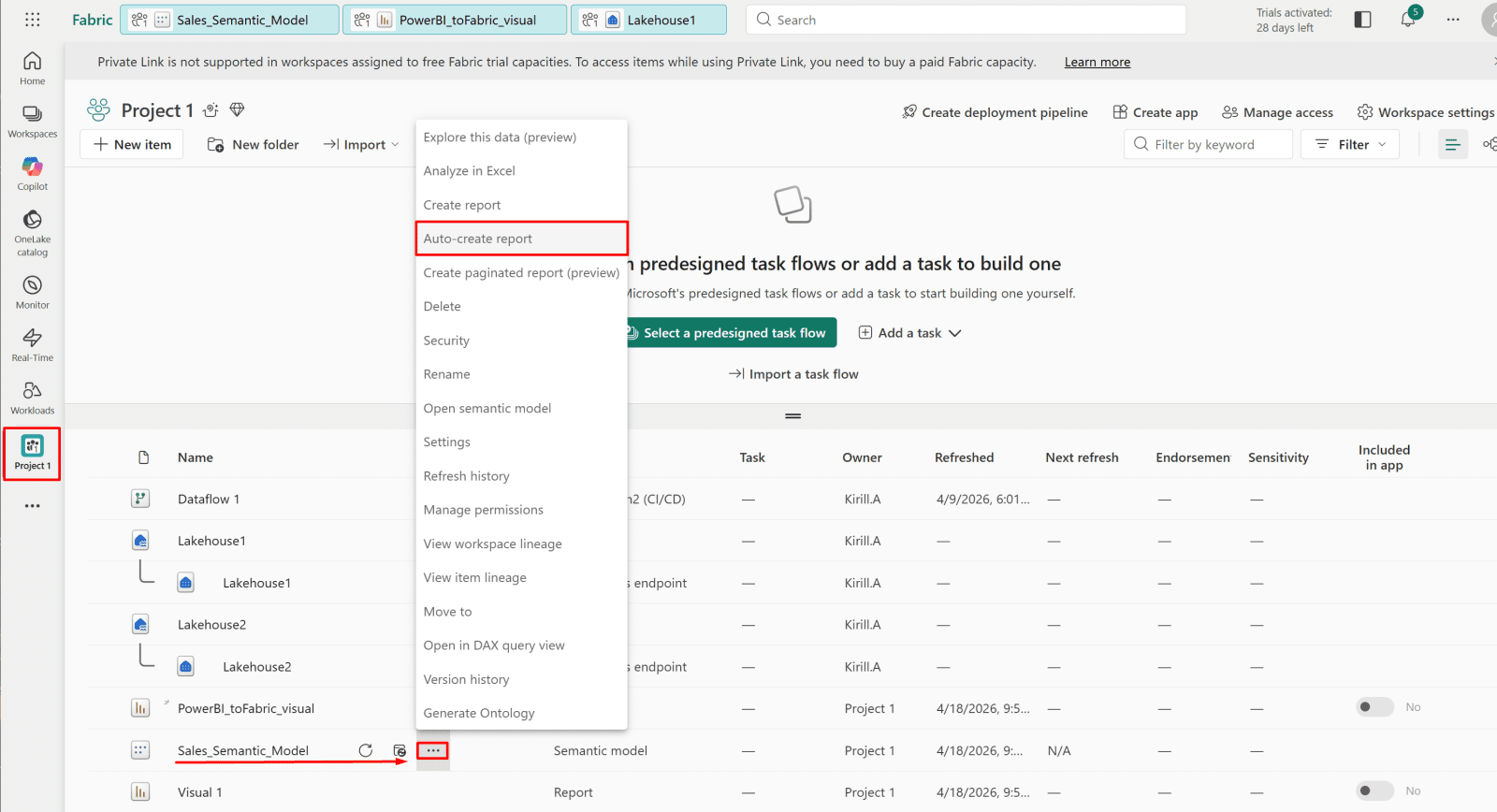
1. From your Fabric workspace, expand the options for the semantic model and select Auto-create report.

*

*

2. The auto-create report feature generates a simple, ready-to-use report with basic visuals based on your data. It is intended as a quick starting point for analysis and typically requires further customization for production use.

*

Share your report with users through apps.

This step explains how to share your report with users by publishing it as an app, making it easy for others to access and use.

Note: You can create 1 app per workspace.

Note: You can include multiple reports in the app.


1. Go to your workspace and click Create App.

*

2. Give your app a name and description, then click Next: Add content.

Note: You can also change the app theme color and upload an app logo.

*

3. Click Add content, select your visual, then click Add.

  • Then click Next: Add audience

Note: You can include multiple reports in the app.

*

4. Grant access to the entire organization or to specific users or groups.

  • Then click Publish app

Note: When you publish an app that has large distribution, it might take a little while to process. Typically, the content will be available within 5-10 minutes, but it can take up to one day.

*

5. Copy the generated link for the report and share it with users.

*

6. Confirm that the app has loaded correctly.

*

Conclusion

By completing this guide, you have built a full analytics workflow in Microsoft Fabric and Power BI - from data modeling and transformation to report creation and distribution. You now understand how to create semantic models, work with Dataflow Gen2, build measures, and integrate Power BI Desktop with Fabric. Finally, you’ve seen how to publish and share reports through apps, enabling secure and scalable access for end users.

*

Written by Kirill.A - Azure & Cybersecurity Consultant at AntusNet

➤ Want more? Browse all our Azure implementation guides.

Need help implementing secure Azure solutions?

Contact us for a free consultation.

    error: Content is protected !!