Loading...

Azure Quick Links

Azure Cloud Projects

Site-to-Site VPN from On-Premises to Azure

In this section, we will build a Site-to-Site (S2S) VPN between Azure and an on-premises environment using Azure VPN Gateway and Windows Server RRAS.

Task Details

1. Create an Azure Virtual Network (VNet).

2. Deploy an Azure VPN Gateway.

3. Create a Local Network Gateway.

4. Configure the on-premises VPN device with Windows Server RRAS.

5. Configure the pre-shared key (PSK) on the RRAS server.

6. Configure the Site-to-Site VPN connection on the Azure Virtual Network Gateway using the same pre-shared key.

7. Validate Connectivity.

8. Join Azure VM to On-Premises Domain (DC01).

9. Optional: Extend Connectivity with VNet Peering.

*

Steps

Create an Azure Virtual Network (VNet).

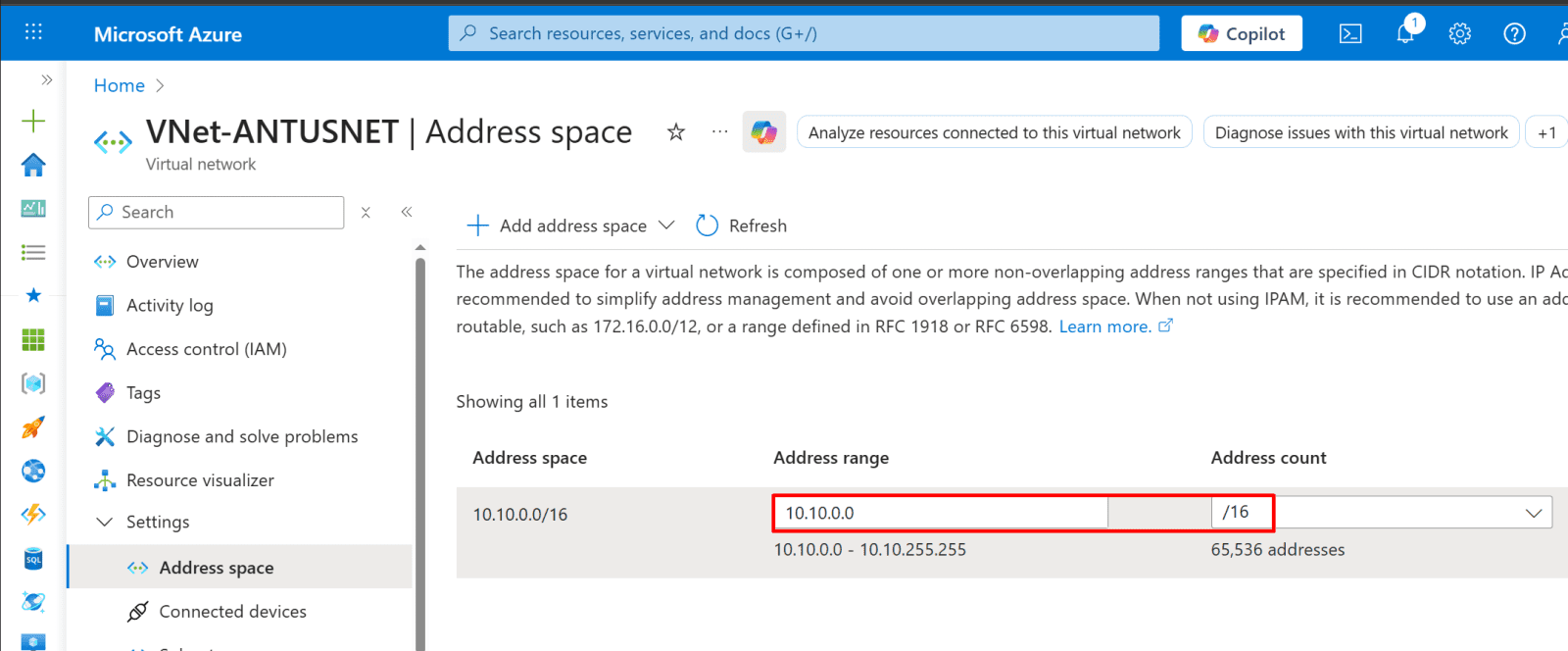
Set up an Azure Virtual Network (VNet) with a dedicated GatewaySubnet to prepare for the Site-to-Site VPN connection. Ensure that the VNet address space does not overlap with your on-premises network.

*

In this example, I will use an ARM JSON template for faster deployment.

1. Search for "Deploy a custom template."

*

2. Click on "Build your own template in the editor."

Paste the template code into the editor and click "Save."

Copy the template code

Note: You can modify the configurable settings to match your environment.

*

*

3. Choose your subscription and resource group, then click "Review + Create."

*

Deploy an Azure VPN Gateway.

The Azure VPN Gateway provides the Azure-side endpoint that establishes and manages the encrypted Site-to-Site VPN tunnel with the on-premises network.

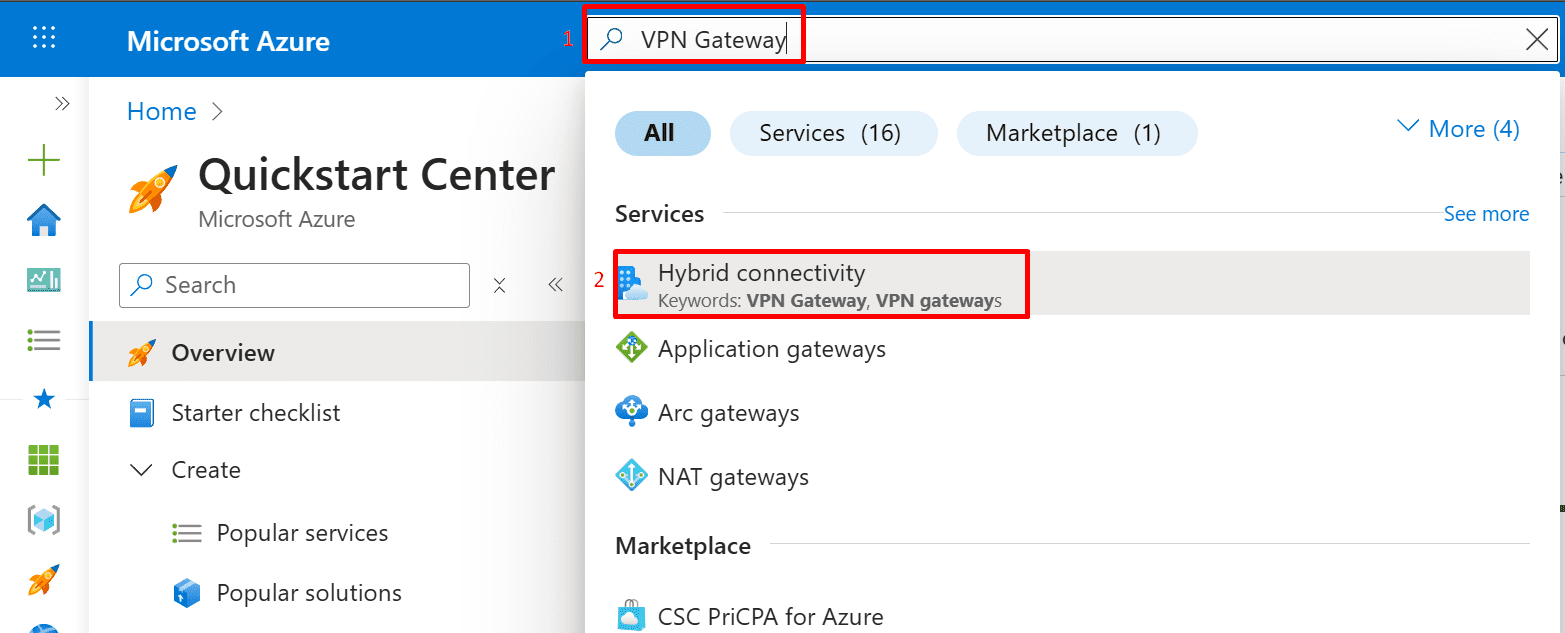
1. Search for VPN Gateway, then select Hybrid connectivity from the results.
*

2. Select Set up VPN gateway.

*

3. Select Create to create the VPN gateway.

*

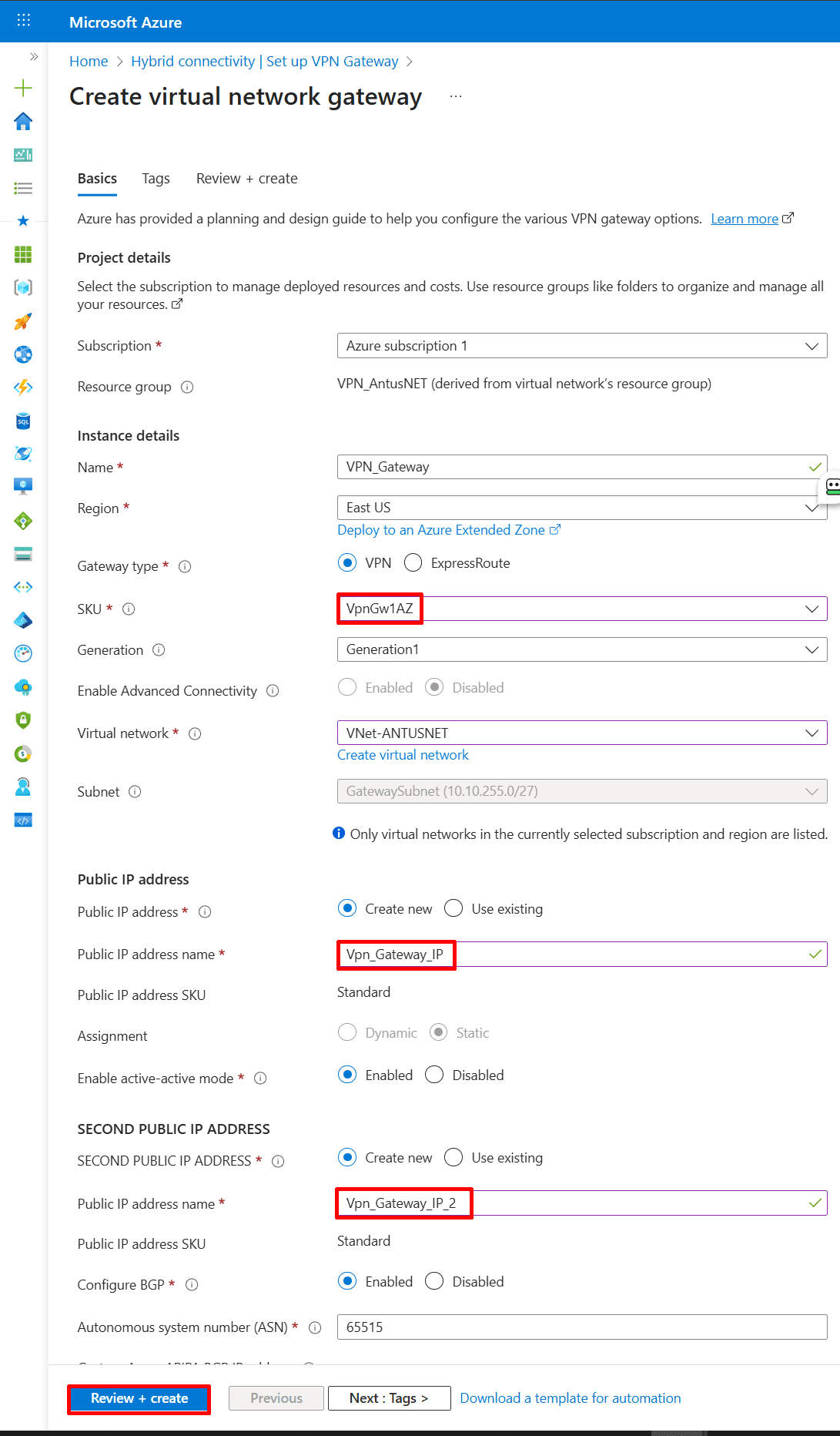
4. Fill in the required details on the Basics page.

Configure the Name, SKU, and other required settings according to your environment.

Note: Azure Key Vault access is not required for Virtual Network Gateways. Site-to-site VPN authentication uses IPsec/IKE pre-shared keys and does not integrate with Azure Key Vault.
*

*

Create a local network gateway.

The Local Network Gateway represents your on-premises network in Azure. It defines the on-premises public IP address and address space so Azure knows where to send VPN traffic and how to route it correctly.

1. Go to "Hybrid connectivity" and create a local network gateway.

*

2. Enter your details, including the public IP of your home router or firewall, and the subnet address space of your domain.

Note: For a basic Azure Site-to-Site VPN with a Windows Server RRAS on-premises, you do NOT need to configure BGP.

BGP (Border Gateway Protocol) is only required if you want dynamic routing, where routes are automatically learned between Azure and your on-prem network. For most home/lab setups with static IPs and small networks, static routes are enough.

*

3. Click Create.

*

Configure the on-premises VPN device with Windows Server RRAS.

Windows Server RRAS acts as the on-premises VPN endpoint, establishing and maintaining the secure site-to-site tunnel with Azure.

1. Log in to your on-premises Windows Server (this will act as your VPN device).

Important: You MUST be logged in as a domain administrator.

  • Open Server Manager → Add Roles and Features.
  • Choose Role-based or feature-based installation → Select your server.
  • Under Roles, check Remote Access → Next.
  • Under Role Services, select Remote Access.

*

2. Click Next three times and check:

  • DirectAccess and VPN (RAS)
  • Routing
  • Click next four times.

3. Click Install to install RRAS and its components.

*

4. After install and reboot:

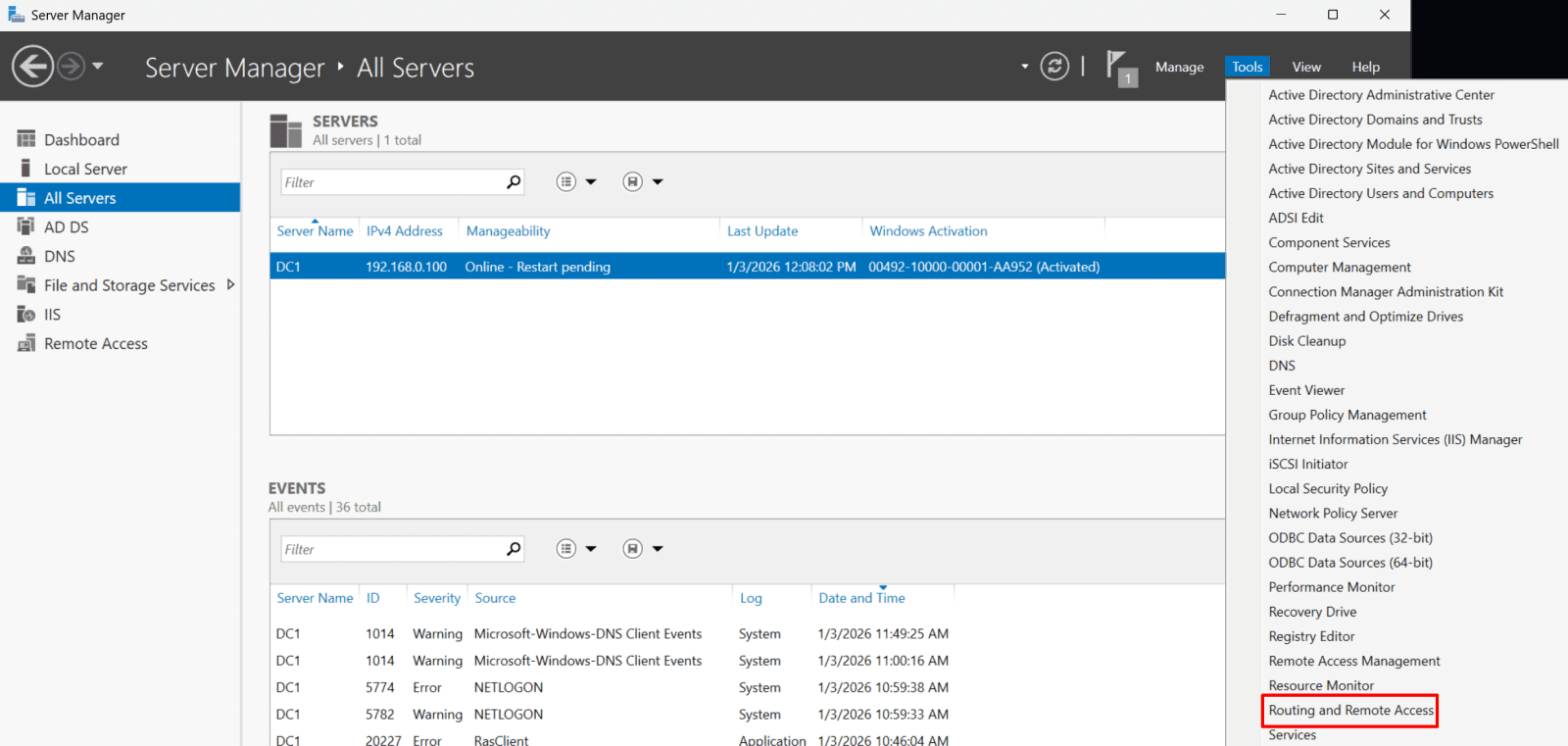
  • Open Server Manager → Tools
  • Click Routing and Remote Access.

*

5. Right-click server → Configure and Enable RRAS

*

6. Choose Custom configuration.

  • Click Next

*

7. Select VPN access and NAT.

  • Click Next

*

8. Click Finish and Start service.

*

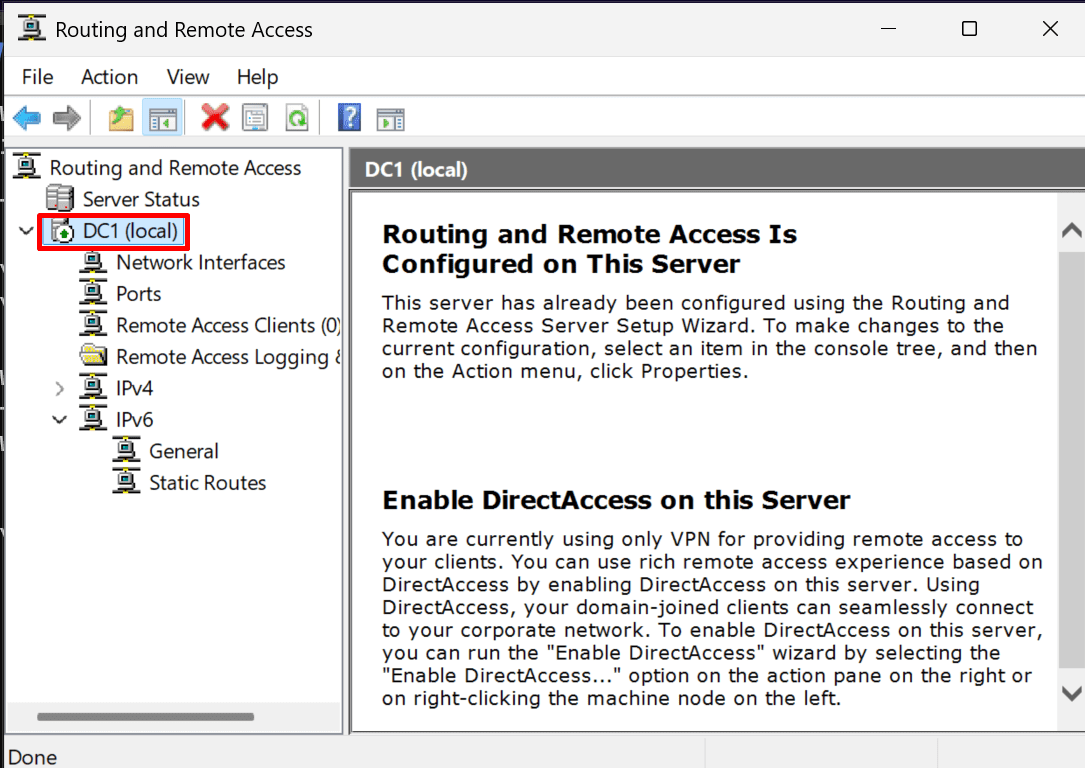
9. Make sure you see the green server icon.

*

10. Create the Demand-Dial Interface (Azure VPN).

  • In RRAS, expand your server.
  • Right-click Network Interfaces.
  • Click New Demand-Dial Interface.

*

11. If you encounter an error: “A phonebook entry cannot be added: the binding handle is invalid!”

Note: In Windows Server 2025, the RRAS MMC snap-in has an RPC/hostname bug that triggers the “binding handle is invalid” error when you try to create a demand-dial interface. That’s why all the usual “admin rights / network interface” fixes don’t fully help - the problem is at the console level, not the service itself.

*

12. Workaround: Use localhost in RRAS MMC.

  • Open Routing and Remote Access MMC.
  • Right-click the top node (the server name).
  • Select Add Server…

*

13. Choose “The following computer” and type: localhost

Note: This bypasses the RPC hostname bug because the MMC communicates via the loopback address instead of the server’s hostname.

*

14. Now expand the node under localhost and try creating the demand-dial interface again.

*

15. The Demand-dial interface wizard will open.

  • Click Next.

*

16. Enter the interface name.

*

17. On the connection type page, choose "Connect using virtual private networking."

18. On the VPN type page, choose IKEv2, as it is required by Azure for route-based VPN gateways.

*

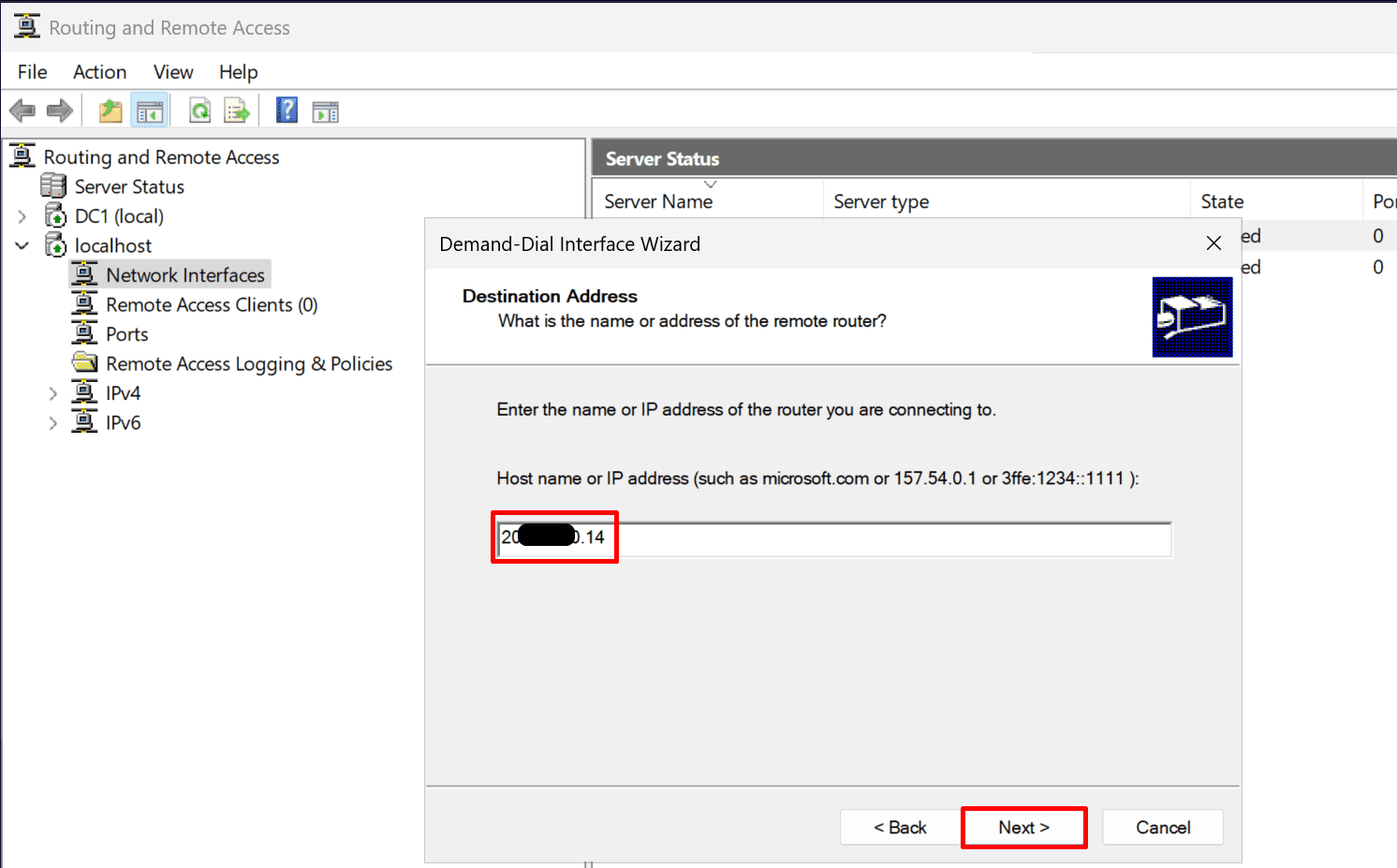
19. On the destination address page, enter the public IP of your Azure VPN Gateway.

Note: Find in Azure portal under “Virtual network gateway → Overview → IP address”

*

*

20. On Protocols and Security page Leave the default unless Azure requires specific settings.

*

21. On the Static Routes for Remote Networks page, add the Azure VNet address space (e.g., 10.10.0.0/16).

  • Then Click next

*

*

22. When configuring a Site-to-Site VPN to Azure using Windows Server RRAS, the Dial-Out Credentials page is not used for authentication. Instead, the connection uses a Pre-Shared Key (PSK) configured in a later step.

What to fill in:

  • User name: Leave this blank or enter a placeholder like "Azure" or "a".
  • Domain: Leave this blank.
  • Password: Leave this blank.
  • Confirm password: Leave this blank.
  • Click Next and Finish.

*

*

Configure the pre-shared key (PSK) on the RRAS server.

Both the RRAS server and the Azure Virtual Network Gateway need the same PSK to authenticate and establish the Site-to-Site VPN tunnel.

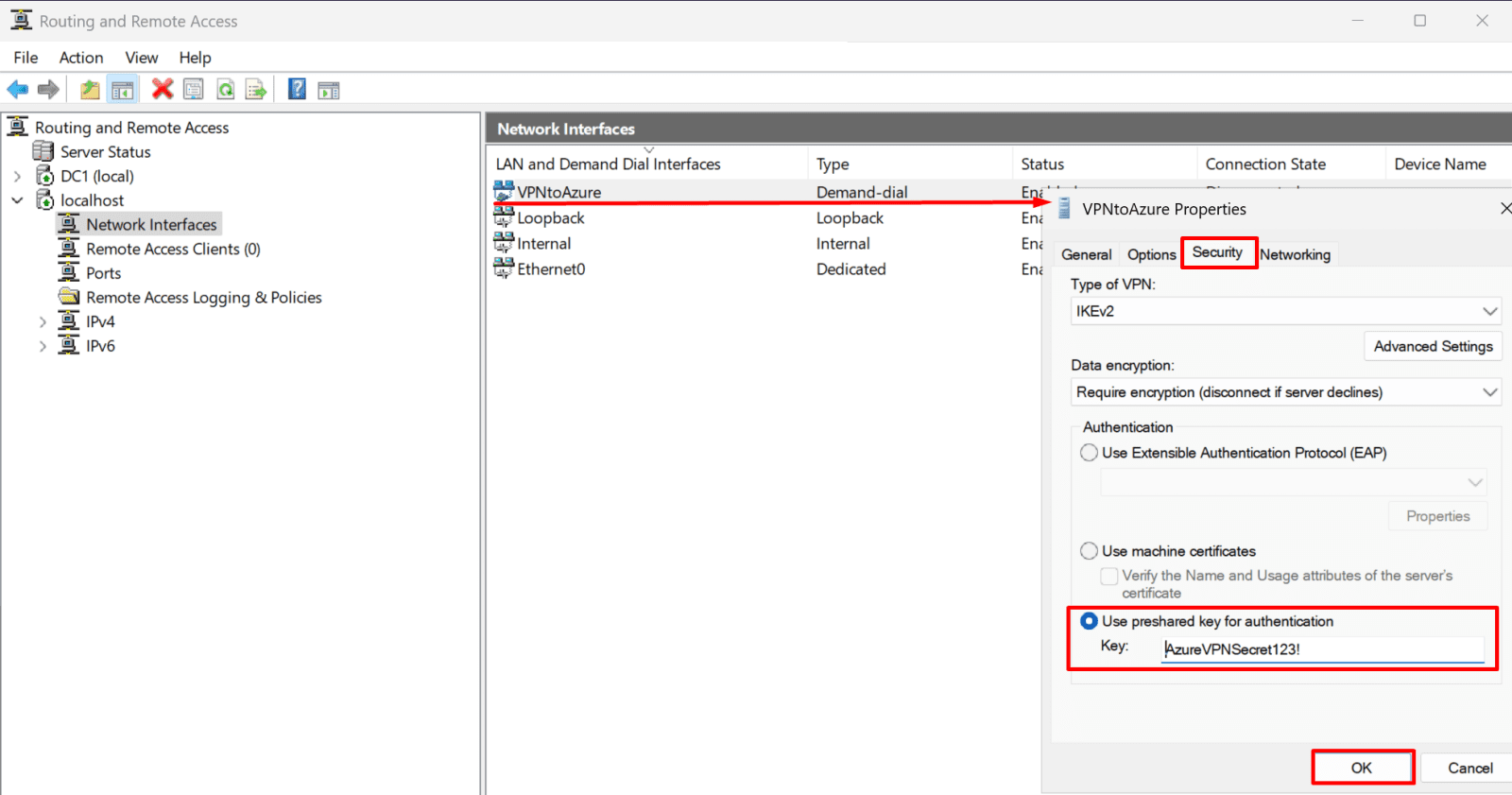
1. Open Routing and Remote Access → Network Interfaces → right-click your Demand-Dial interface (VPNtoAzure) → Properties → Security tab.

*

2. Select “Use a preshared key for authentication”.

  • Enter a secure PSK (e.g., AzureVPNSecret123!) and click OK.

Configure the Site-to-Site VPN connection on the Azure Virtual Network Gateway using the same pre-shared key.

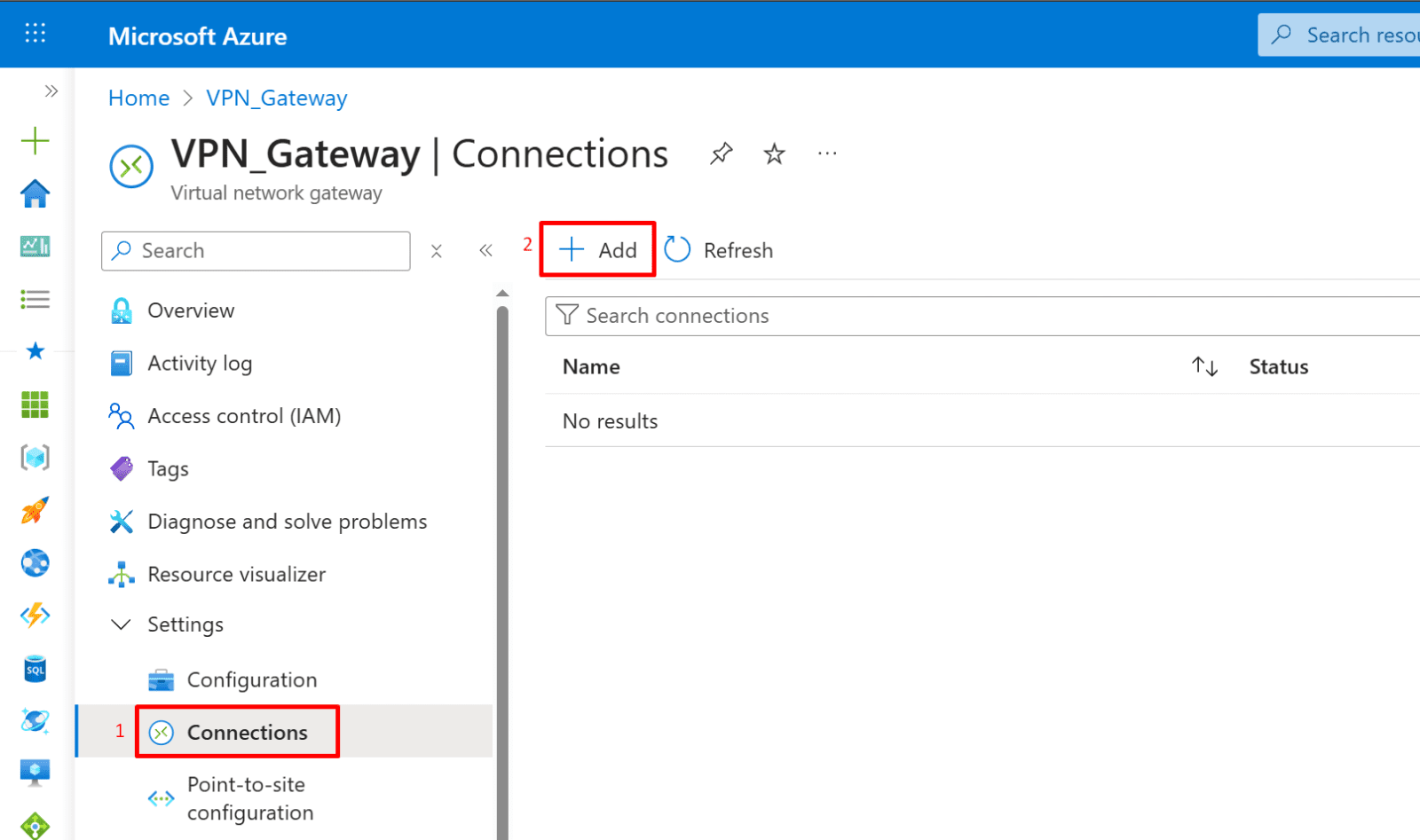
1. Create the Site-to-Site connection.

  • Azure Portal → Virtual network gateways
  • Open your VPN Gateway
  • Click Connections
  • Click + Add

*

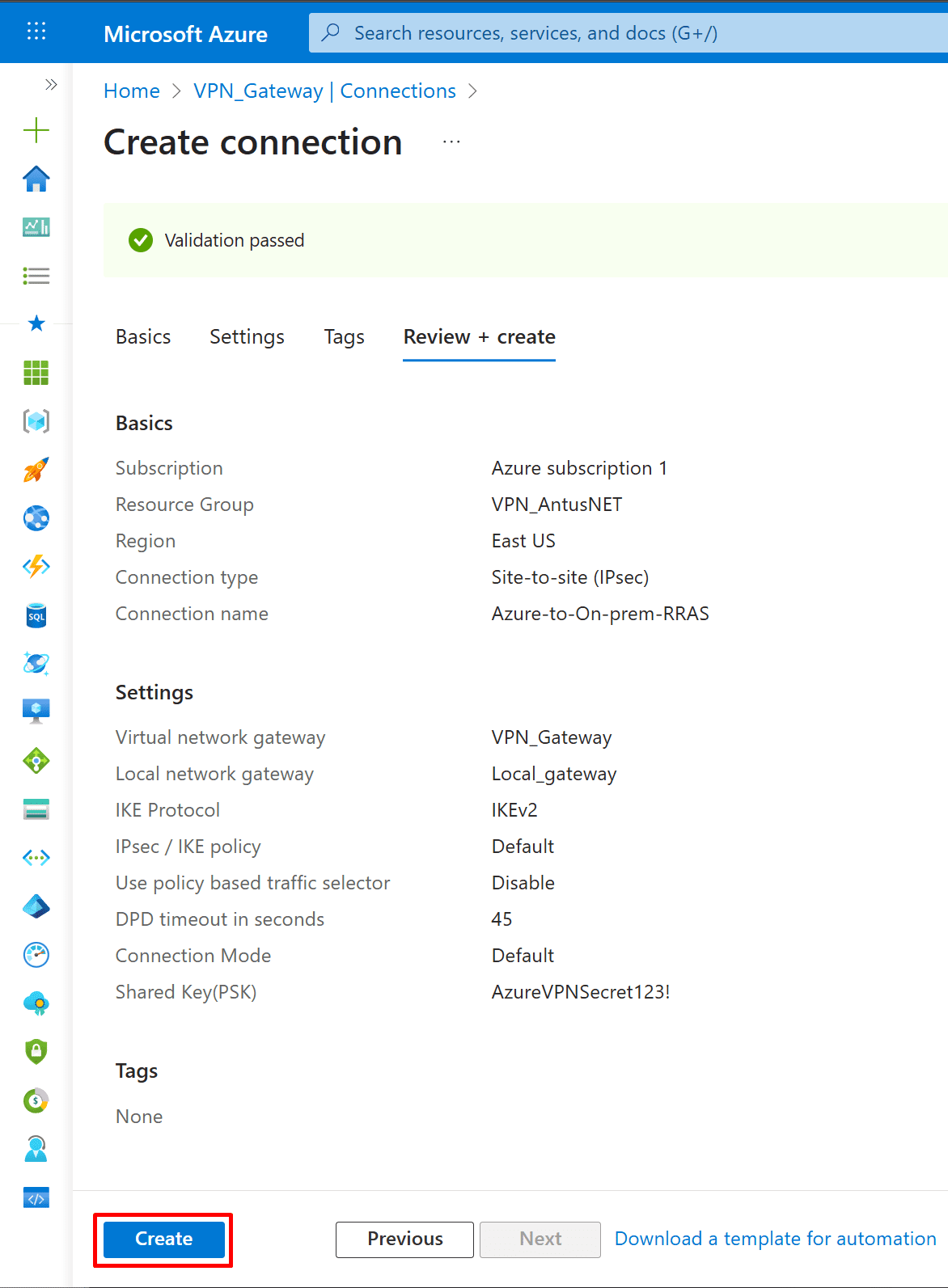
2. Fill it exactly like this:

  • Connection type: Site-to-site (IPsec)
  • Click Next

*

3. On the settings page:

  • Virtual network gateway: (auto-selected)
  • Local network gateway: (select your LNG)
  • Authentication: Shared key (PSK)

Shared key:

  • Must match exactly the key you set in RRAS AzureVPNSecret123!
  • IKE protocol: IKEv2 (recommended)
  • Click Create

*

*

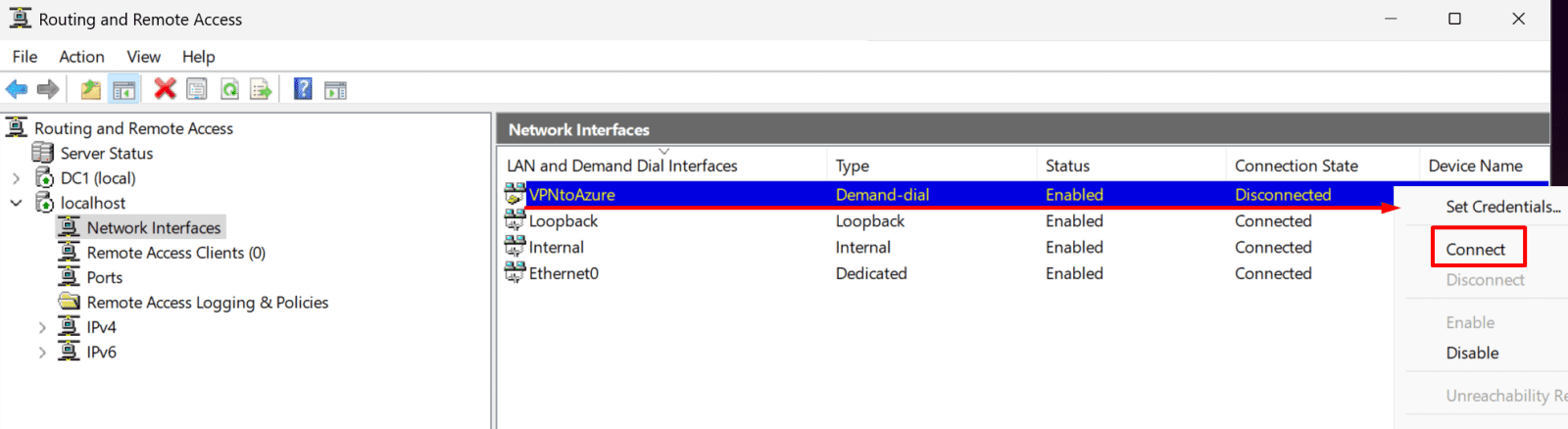
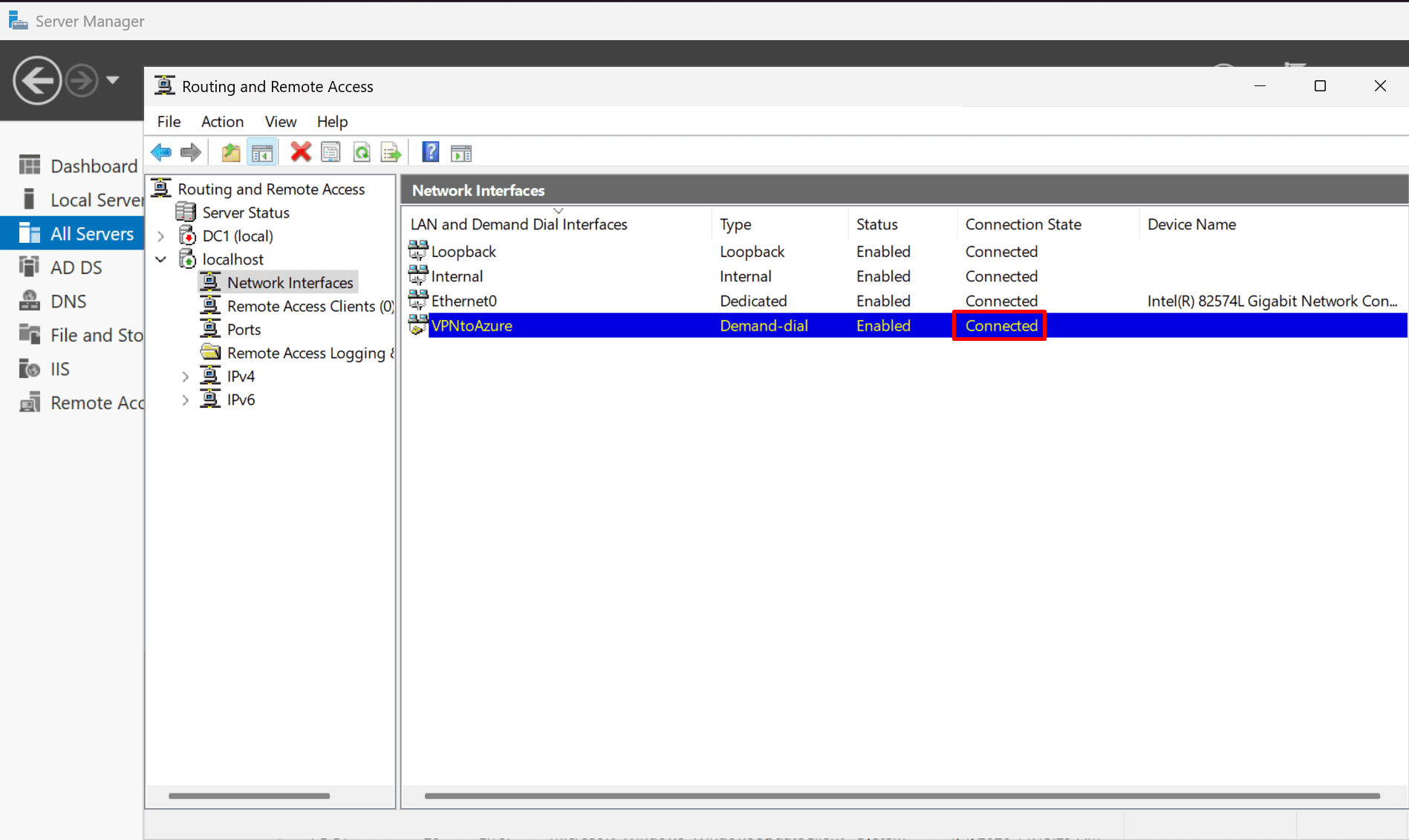
4. Go back to DC1 and connect to Azure.

  • Right-click on demand dial (VPNtoAzure) and connect.

*

4.  The connection state should change to connected.

*

Validate Connectivity.

I have created a virtual machine in the VNet VNet-ANTUSNET on the subnet Subnet-VM.

Ping DC1 from VM1

1. Log in to VM1. Open a Command Prompt or PowerShell window and ping DC1 to verify network connectivity.

*

Ping VM1 from DC1.

1. Run the following PowerShell script on VM1 to allow incoming ping (ICMP) requests.

Copy command

New-NetFirewallRule -Name "Allow-ICMPv4-Inbound" -DisplayName "Allow ICMPv4 Inbound" -Protocol ICMPv4 -IcmpType 8 -Direction Inbound -Action Allow

*

Access shared folder on DC1 from VM1

1. On VM1, open C:\Windows\System32\drivers\etc\hosts in Notepad as an administrator.

Add the following line:

192.168.0.100 DC1

Save the file

Note: This maps the IP address 192.168.0.100 to the hostname DC1, allowing VM1 to resolve it correctly.

*

2. On VM1, map a shared folder from DC1. You will need to provide the credentials for DC1 to access the share.

*

Once the Site-to-Site VPN is established, all domain-joined systems on the on-premises network can communicate with the Domain Controller over the VPN, as long as routing, DNS, and firewall rules allow it. The VPN operates at the network layer, so domain traffic (Kerberos, LDAP, DNS, SMB, etc.) flows transparently between on-premises and Azure.

Important clarifications:

  • The systems must be on a subnet that is included in the Local Network Gateway address space
  • DNS must point to the DC (Azure VMs should use the DC’s IP, not public DNS)
  • NSGs, Windows Firewall, and RRAS must allow required AD ports
  • The VPN does not automatically join machines to the domain — it only provides connectivity

*

Add Azure VM to On-Premises Domain (DC01)

This step will demonstrate joining an Azure VM to the on-premises domain over the Site-to-Site VPN, validating full AD integration.

Note: If you are not using Bastion and want to apply the custom DNS to the whole network, use VNet-wide DNS.

VNet-level DNS (Virtual Network)

This method will not work if you are using Bastion.

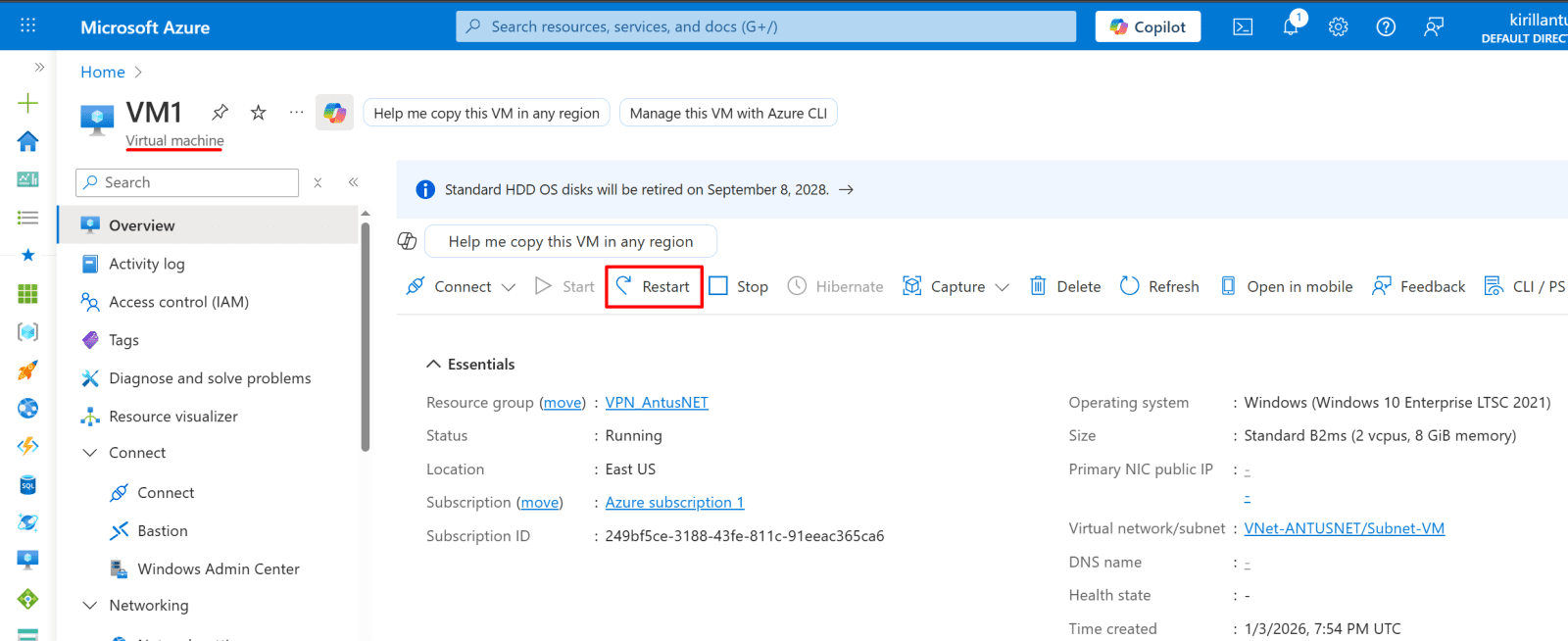
1. Set the virtual network DNS to a custom DNS server by specifying the domain controller IP address (192.168.0.100). This ensures all VMs in the VNet use the DC for name resolution. Restart existing VMs to apply the change.

  • In Azure portal → VNet → DNS servers → Set Custom DNS → 192.168.0.100
  • Restart the VM to pick up the DNS.

*

Or

VM-level DNS (Network Interface)

2. Set the VM network interface to use a custom DNS server by specifying the domain controller IP address (192.168.0.100) instead of inheriting DNS from the virtual network. This ensures the VM resolves domain resources correctly and may trigger a VM restart.

  • Go to your Azure VM → Networking → Network Interface → DNS servers (or “DNS” field).
  • Select Custom.
  • Enter your on-prem DC IP (192.168.0.100).
  • Save and restart the VM.

*

2. Restart VM1.

*

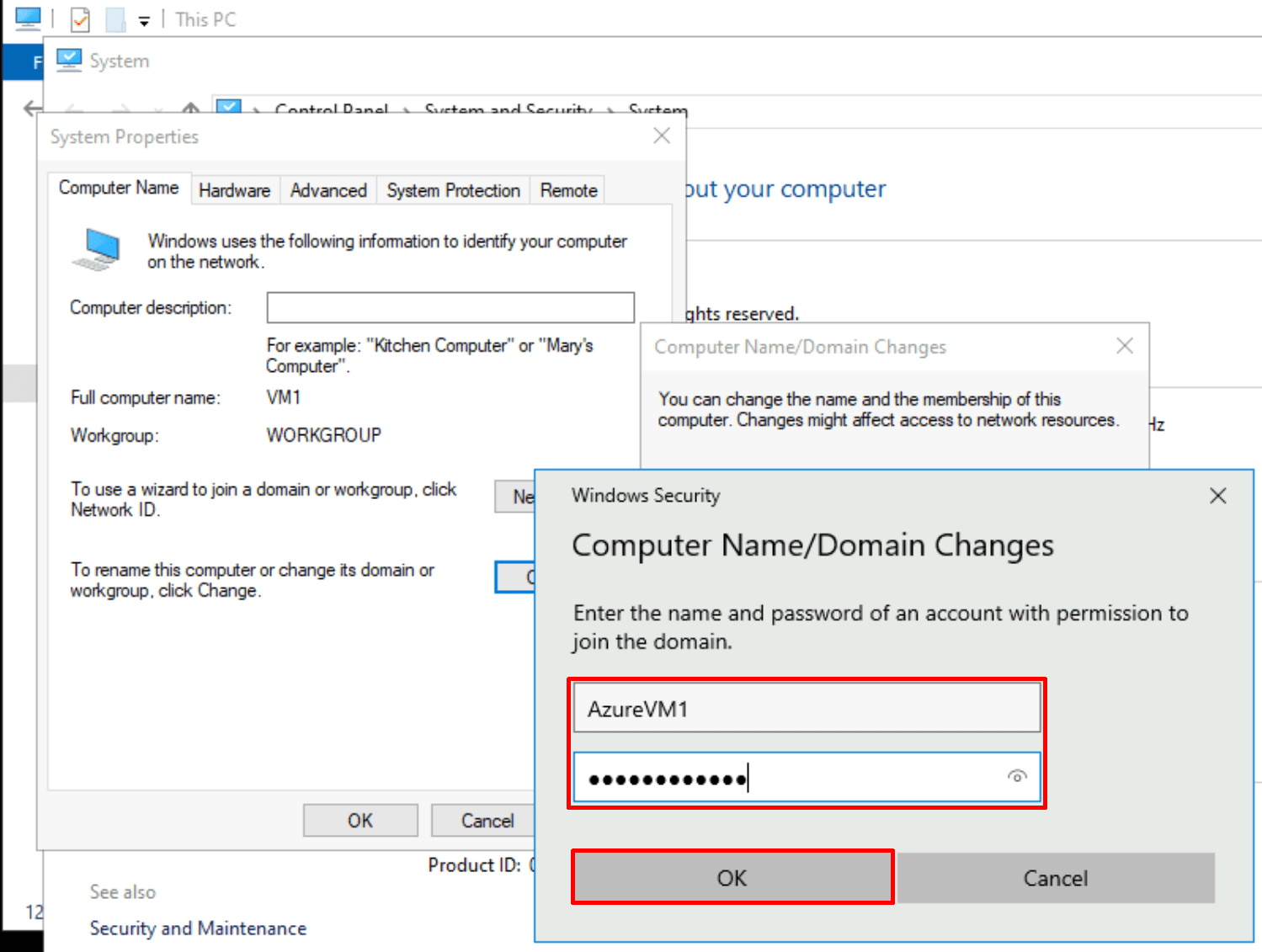
3. Create a domain user for Azure VM1 on DC1.

*

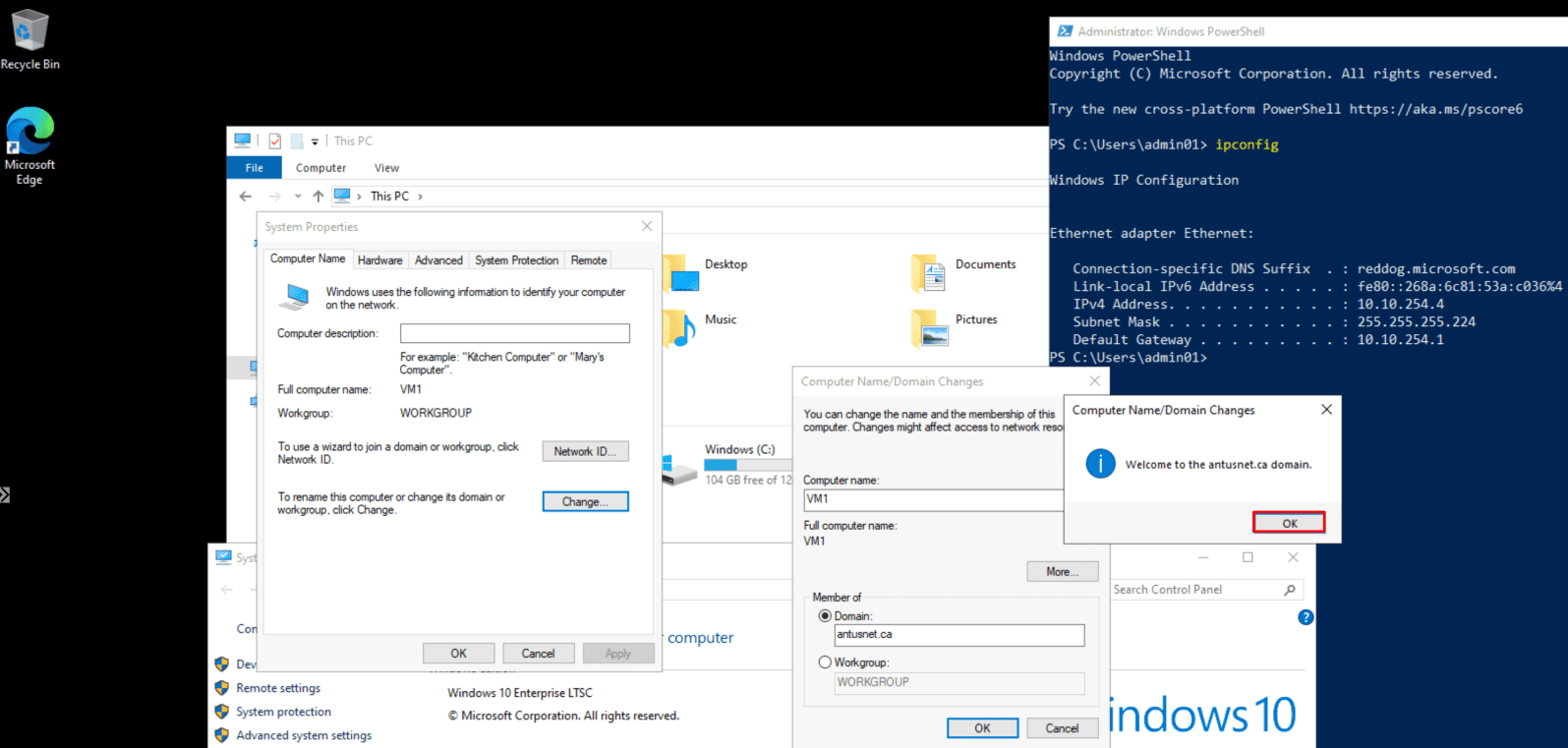
4. Join Azure VM1 to the domain controller.

  • Log in to Azure VM1, then go to the System Properties → Computer Name tab and select Change.
  • Under Member of, select Domain and enter the domain name (for example, antusnet.ca).

*

5. Type the username and password created earlier and click OK.

*

*

6. Log in to Azure VM1 as a domain user

When connecting via RDP, use the following format:

Username: username@domain.com
Password: domain user password

*

7. Verify that you are logged in as a domain user

Run the following command:

whoami /fqdn

*

*

Optional: Extend Connectivity with VNet Peering

Proceed to this guide for guidance.

After the Site-to-Site VPN is successfully configured, you can create additional Azure Virtual Networks and peer them with the VNet that hosts the VPN Gateway. This allows resources in multiple VNets to securely communicate with the on-premises network through the same VPN connection.

Prerequisites

  • An existing Azure VNet with a configured VPN Gateway.
  • Site-to-site VPN connectivity successfully validated.
  • Additional Azure VNet(s) created in the same or a different region.

Steps

1. Create an additional Azure Virtual Network.

  • Create a new VNet with a non-overlapping IP address range.

2. Configure VNet peering (Hub → Spoke)

  • Go to the VNet that contains the VPN Gateway (hub VNet)
  • Select Peerings → Add
  • Choose the target VNet.
  • Enable Allow gateway transit.
  • Enable Allow forwarded traffic.

3. Configure VNet peering (Spoke → Hub)

  • Go to the new VNet (spoke VNet)
  • Select Peerings → Add
  • Peer it back to the hub VNet.
  • Enable Use remote gateway.
  • Enable Allow forwarded traffic.

4. Update routing if required.

Ensure route tables (UDRs) and NSGs allow traffic between:

  • Spoke VNets
  • Hub VNet
  • On-premises subnets

5. Validate connectivity

Test connectivity from:

  • Spoke VNet → On-premises network
  • On-premises network → Spoke VNet

*

Conclusion

In this guide, we successfully established a Site-to-Site VPN between Azure and an on-premises environment using Azure VPN Gateway and Windows Server RRAS. By correctly configuring the virtual network, gateways, and a shared pre-shared key on both sides, we enabled secure, encrypted communication over the public internet.
This setup provides a solid foundation for hybrid scenarios such as extending on-premises workloads to Azure, testing hybrid architectures, or building lab environments that closely reflect real-world enterprise deployments.

*

Written by Kirill.A - Azure & Cybersecurity Consultant at AntusNet

➤ Want more? Browse all our Azure implementation guides.

Need help implementing secure Azure solutions?

Contact us for a free consultation.

    error: Content is protected !!