This guide walks you through the key steps to publish, secure, and share your Power BI reports effectively. From signing in and publishing your reports to configuring dashboards, RLS, and dataset access, these instructions ensure that your team can collaborate securely and gain insights from your data efficiently. The guide also covers connecting on-premises (Server 2025) CSV data to Power BI using a standard mode data gateway, so you can refresh and analyze local data seamlessly. Whether you are creating dashboards for desktop or mobile, this guide covers best practices for managing access, automating alerts, and leveraging Power BI’s analytical features..
*

This guide is designed to be followed in sequence:
Part 1 - Advanced Data Preparation in Power BI
Part 2 - Model the Data with power BI
Part 3 - Visualization and Report Creation with Power BI
Part 4 - Power BI Report Deployment & Management
*
Important: To follow this guide, you will need a Power BI Pro or Premium license.
The complete report can be found here
*
Task Details
1. Sign in to Power BI Service.
2. Publish the report to Power BI Service, then export the data to Excel or CSV.
3. Set the sensitivity label.
4. Create a workspace and assign roles to users.
5. Create a workspace app and set the audience.
6. Update the reports and dashboards in your workspace.
7. Pin visuals and live pages to the dashboard.
8. Add and configure the Q&A feature on your dashboard and set the dashboard theme.
9. Configure the mobile layout.
10. Get Insights: Automatic Data Analysis.
11. Connecting On-Premises CSV Data to Power BI Using a Data Gateway in Standard Mode.
12. Set up subscription and data alerts.
13. Create RLS roles and assign group members in Power BI Desktop.
14. Grant users or groups access to the dataset.
*
Steps
*
Sign up with the Power BI service.
Any Microsoft Entra ID account (formerly Azure AD account) that exists in a Microsoft 365 tenant can access the Power BI Service, as long as:
- The account has a work or school account type.
- The account is assigned a Power BI license (Pro or Premium per user).
Here’s how it works:
- Entra ID account → identifies the user in your tenant.
- License assignment → tells Power BI what features the user can access.
- Power BI Service → allows the account to log in, access workspaces, refresh datasets, and create reports.
Note: You can activate a free 60-day Power BI Pro trial to test all features, including report creation, sharing, and workspace collaboration, before purchasing a license.
Note: You must use a work or school account to create and use a Power BI service account. Personal email accounts (such as Gmail or Outlook.com) are not supported in Microsoft Power BI Service. The account must be created within your organization’s tenant in Microsoft Entra ID (formerly Azure Active Directory) and assigned an appropriate Power BI license.
Note: Although a Microsoft Power BI Service sign-in is possible using a Global Administrator account, it is not recommended to use Global Admin accounts for Power BI automation or service tasks. Instead, create a dedicated work or school service account in Microsoft Entra ID and assign only the required Power BI license and workspace permissions. This follows the principle of least privilege and improves security.
*
Publish the report to Power BI Service, then export the data to Excel or CSV.
Publishing a report and its data to Power BI Service allows you to share insights, collaborate with your team, and enable online access to your dashboards from anywhere.
Note: If a report is published from a workspace assigned to Premium capacity, users with a free Power BI license can view and interact with the report.
*
Publish the report
Publishing the report to Microsoft Power BI Service allows users to access the report online, share it with others, and enable features such as dashboards, collaboration, and scheduled data refresh.
1. In Power BI Desktop:
- Go to Home → Publish.
- Enter your Work or School account credentials to sign in.

*
- A Microsoft authentication window will appear.

*
2. Click Save to save your changes.

*
3. Select the predefined workspace:
Choose “My Workspace," a personal workspace automatically created by Microsoft if no other workspace exists. This is where you can publish, manage, and test your reports before sharing them.
Note: Your default My Workspace in Power BI is private and cannot be used for sharing reports with others. To collaborate and assign roles, you need to create a separate workspace and assign users the appropriate roles (Admin, Member, Contributor, or Viewer).

*

*
4. Confirm that the report and its dataset were uploaded to Power BI Service.

*
5. Select your report to view it in the Power BI Service dashboard.
Note: Try using the navigation buttons and check if they work properly.

*
6. You can also click Edit to modify the report in the Power BI Service using a familiar editing interface.

*

*
Export the data.
Exporting data allows users to further analyze, share, or keep a copy of the report data outside of Power BI, such as in Excel or CSV format for additional calculations or reporting.
1. Export data by clicking three dots next to the visual and select.

*
2. Select summarized data to export it to an Excel or CSV file.
Note: You will need a Power BI Pro or Premium license for this.

*
3. Now you can analyze, share, or keep a copy of the report data outside of Power BI.

*
Set the sensitivity label.
Sensitivity labels are set to classify and protect data. They help control who can access, share, or edit the report and can enforce encryption, watermarking, or other security policies to keep sensitive information safe.
1. Configure Export Settings in Power BI Service.
- In Power BI Service, go to My Workspace.
- Locate your report, click the three dots (⋯) next to it, and select Settings.
- Scroll down to the Export data section.
Here, you can control:
- What data users are allowed to export.
- How users can interact with filters in the report.

*
Create a workspace and assign roles to users.
Your default My Workspace in Power BI is private and cannot be used for sharing reports with others. To collaborate and assign roles, you need to create a separate workspace and assign users the appropriate roles (Admin, Member, Contributor, or Viewer).
*
Create a workspace.
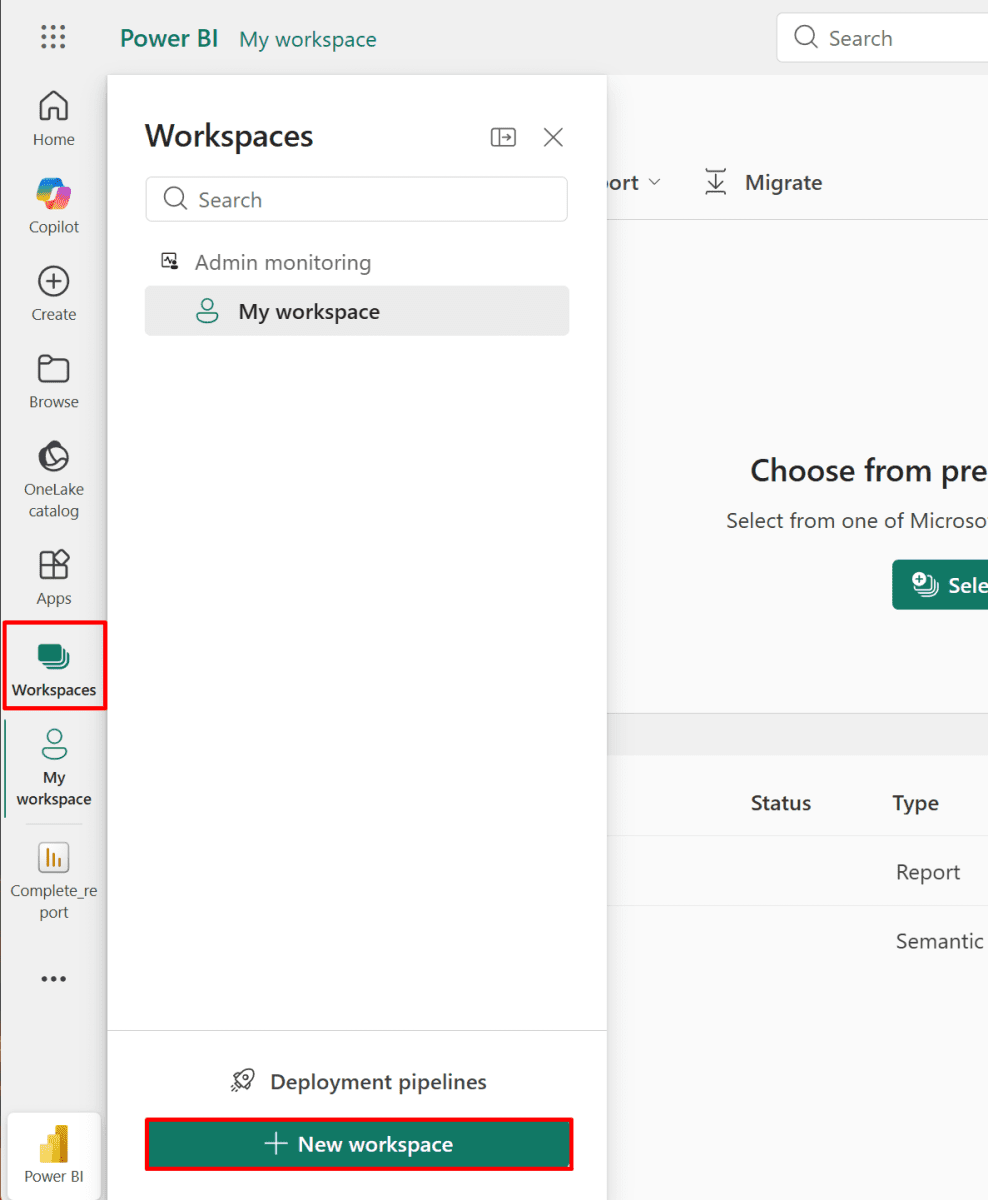
1. Select Workspaces, then click + New workspace.
*
2. Give your workspace a name, then click Apply.

*
3. Publish your report again to the new workspace you created.
Follow the previous steps, but select the newly created workspace.