Loading...

Azure Quick Links

Azure Cloud Projects

Hybrid Identity Synchronization

Configuring Microsoft Entra Connect for Hybrid Identity Synchronization.

Azure AD Connect serves as the essential bridge between your on-premises Active Directory and Microsoft Entra ID (Azure AD). It enables organizations to maintain a single identity for users, allowing seamless access to both on-premises resources and cloud services (single sign-on experience), while supporting hybrid identity, authentication, and security management.

*

Note: To follow these steps, you first need to set up a domain and Active Directory environment.

This guide will show you how: Active Directory Lab Guide

*

Task Details

1. Download the Microsoft Entra Connect (Azure AD Connect) sync agent from the Azure portal.
2. Verify Domain Ownership in Azure.
3. Install and configure Azure AD Connect on a domain-joined server with Password Hash Synchronization and single sign-on (SSO) enabled.
4. Validate User Synchronization.
5. Log in to Azure as a synchronized user using on-premises credentials.

*

Steps

Download the Microsoft Entra Connect (Azure AD Connect) sync agent from the Azure portal.

1. Download Microsoft Entra Connect Sync on your on-premises domain controller.

  • Go to Entra ID → Microsoft Entra connect

*

2. Click "Manage" tab and download "Connect sync agent."

*

3. Copy the file to your domain controller.

*

Verify Domain Ownership in Azure.

This step ensures that Azure can verify you own the domain. First, create a TXT record at your domain registrar, then click Verify in Azure to complete the validation.

Note: You can skip this step if your domain is not publicly registered, e.g., mydomain.int.

I’m using antusnet.ca, a registered domain, which allows domain ownership verification in Azure.

*

1. Create a custom domain in Azure.

  • Go-to → Default Directory → Custom domain names → Add custom domain
  • Enter domain name: antusnet.ca (in my case)
  • Click Add Domain

*

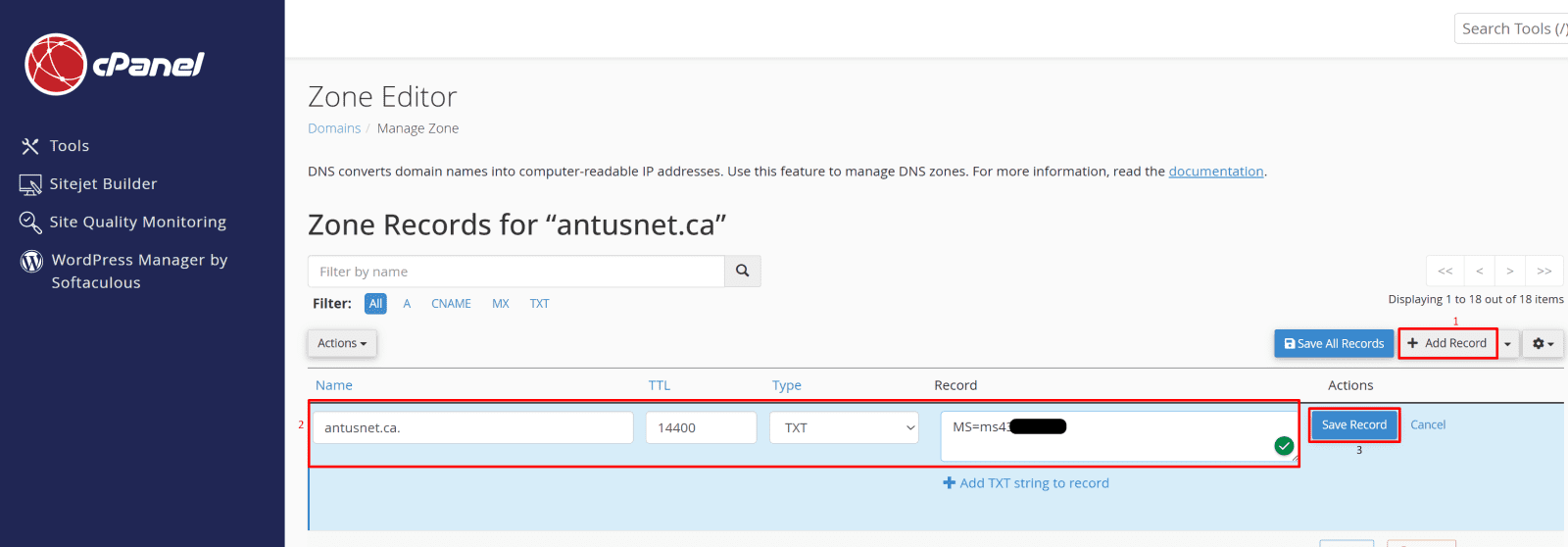
2. Before clicking Verify, you must create a TXT record in your domain registrar.
In this example, cPanel is used, but the steps may vary depending on your registrar, however, the intent remains the same.

*

3. In the cPanel DNS Zone Editor, add a TXT record using the provided MS-msXXXXXXXX value.
*

4. In Azure Portal, click Verify.

The antusnet.ca domain was verified successfully.

*

Install and configure Azure AD Connect on a domain-joined server with Password Hash Synchronization and single sign-on (SSO) enabled.

1. Double-click on the downloaded file and follow the wizard to sync your on-premises Active Directory with Microsoft Entra ID.

*

2. Choose “Customize” to gain more granular control over the Azure AD Connect settings.

Note: When installing Azure AD Connect, choose “Customize” during the setup. This option allows you to configure advanced settings, such as selecting specific organizational units (OUs) to synchronize, choosing the authentication method, and controlling which attributes are synced. Using Customize gives you more granular control over your Azure AD Connect deployment.

*

3. On the "Install required component" page, leaving everything blank is fine - the wizard will install all defaults (local SQL Express, default service account, and sync all AD objects), which is perfect for a lab or demonstration.

*

Options explanation.

1. Specify a custom installation location

  • Lets you choose a folder to install the Azure AD Connect service.
  • Useful if you want it on a different drive than C:\ for storage or organizational reasons.

2. Use an existing SQL Server

  • Azure AD Connect uses a SQL database to store sync configuration.
  • By default, it installs a local SQL Express instance.
  • This option allows you to use a pre-existing SQL Server (full SQL) instead.

3. Use an existing service account

  • Normally Azure AD Connect creates a dedicated service account automatically.
  • With this option, you can use an already-created AD service account, giving more control over permissions.

4. Specify custom sync groups

  • Lets you choose exactly which AD groups to synchronize to Azure AD.
  • Useful for limiting sync to certain departments or environments.

5. Import synchronization settings

  • Allows you to reuse a previously exported configuration from another Azure AD Connect installation.
  • Handy for redeployments or lab cloning.

*

4. After the installation is complete, choose the "Password Hash Synchronization" option to allow users to sign in to the cloud using the same passwords that they use on premises.

*

5. Enter the username of the Azure Global Administrator.

Note: Best practice in production is to create a separate, dedicated Global Admin account for administration and synchronization tasks, this improves security and follows the principle of least privilege.

*

6. Click on “Add Directory” (you will need to provide Enterprise Admin credentials).

*

7. Create new enterprise administrator, then click "OK"

*

8. As we can see, the user has been created.

  • Select your forest
  • Click “Next.”

9. If you don't have a registered domain, you can check the box "Continue without matching all UPN suffixes to verified domains."

Note: The checkbox “Continue without matching all UPN suffixes to verified domains” in Entra Connect Sync allows you to proceed even though your on-premises UPN suffix (antusnet.ca in this case) is not yet verified in your Azure/Entra tenant.

*

10. In this case, antusnet.ca is a registered domain, so it was successfully verified.

*

11. In this demo, I will sync all OUs; however, you can choose specific OUs to sync if needed.

*

12. On the "Uniquely Identifying Your Users" page, if you have only one domain without replication, leave the defaults and click "Next."

Note: On the "Uniquely Identifying Your Users" page, select how Azure AD identifies your users, usually leave the defaults if you have a single domain without replication.

*

13. On the "Filter users and devices" page, choose "Synchronize all users and devices" and click "Next."

*

14. On "Optional feature page," leave defaults and click "Next."

Note: On the "Optional Features" page, you can enable additional options like password sync, pass-through authentication, device writeback, and Exchange hybrid attributes, depending on your environment needs.

Important

Cloud Changes and Writeback:

Requirements for Device Writeback: Microsoft Entra ID P1 or Microsoft Entra ID P2 license.

By default, Azure AD sync is one-way (on-premises → cloud). To allow changes made in Azure to sync back to on-premises, enable writeback features such as password writeback, user writeback, or group writeback. Without these, Azure AD changes will not affect on-premises AD.

Note: 

1. SSPR (Self-Service Password Reset) without Password Writeback

  • Only password changes on-premises are synced to Azure AD.
  • Users can change their password in Active Directory, and it updates in Entra ID.
  • But if a user tries to reset their password directly in Azure Entra ID, it won’t update on-prem AD.
  • This is why it’s “one-sided” — cloud resets don’t flow back to the on-prem environment.
  • Users may still need helpdesk support if they forget passwords and can’t reset themselves in the cloud.

2. SSPR with Password Writeback enabled

  • Password changes and resets in Azure AD are written back to on-prem AD.
  • Users can reset passwords from anywhere, including from the cloud portal or mobile.
  • Reduces helpdesk tickets because users can self-service both cloud and on-prem accounts.
  • Requires Entra ID Premium P1 or P2 license.
  • Users must be properly enrolled in SSPR (register authentication methods).

*

15. After it verifies all required components, click "Install."

*

16. The configuration succeeded!

Note: It’s common for the configuration to fail the first time, even if everything is set up correctly. Simply run it again, and it should succeed.

*

17. Confirm that users have been synchronized from on-premises to Azure.

Enabling the filter "On-Premises Sync Enabled" will show only users synchronized from on-premises.

Note: All on-premises users will have their User Principal Name (UPN) as user_name@antusnet.ca, and On-Premises Sync will be enabled.

*

Log in to Azure as a synchronized user using on-premises credentials.

1. I will log in as HR user Alice.

*

2. The username should be formatted as user_name@domain.com.

*

3. If password hash synchronization or pass-through authentication is enabled, the user can use their on-premises password to log in to Azure AD and any connected services like Office 365, Exchange, Teams, or Intune.

Note: This allows a seamless single sign-on experience without creating separate cloud passwords.

*

Once users are synchronized from on-premises AD to Azure AD, you get several key benefits:

Single Sign-On (SSO) – Users can sign in to both on-premises and cloud resources (Office 365, SaaS apps, Azure services) with the same credentials.

Centralized Identity Management – Manage user accounts, passwords, and attributes in one place (on-premises AD) while syncing changes to Azure AD automatically.

Seamless Access to Cloud Services – Synchronized users can immediately access Azure and Microsoft 365 resources without manual account creation in the cloud.

Password Management – Options like password hash sync or pass-through authentication let users maintain one password across environments.

Conditional Access & Security Policies – Apply Azure AD security features (MFA, conditional access, device compliance) to synchronized users.

Hybrid Deployment Support – Supports hybrid Exchange, Teams, Intune, and other services that rely on Azure AD identities.

Device and Group Writeback – Optional features let devices or groups in Azure AD be written back to on-premises AD for hybrid management.

*

Conclusion

In this guide, you successfully implemented a hybrid identity setup using Microsoft Entra Connect. You verified domain ownership in Azure, installed and configured Entra Connect on a domain-joined server with Password Hash Synchronization and Seamless Single Sign-On enabled, and confirmed that on-premises users were synchronized to Microsoft Entra ID.

Finally, you validated the configuration by signing in to Azure using on-premises credentials, demonstrating a functional hybrid authentication flow.

This configuration provides a foundation for centralized identity management, improved user experience through single sign-on, and future implementation of advanced security features such as Conditional Access, Microsoft Defender for Identity, and hybrid access policies.

*

Written by Kirill.A - Azure & Cybersecurity Consultant at AntusNet

➤ Want more? Browse all our Azure implementation guides.

Need help implementing secure Azure solutions?

Contact us for a free consultation.

    error: Content is protected !!