Deploying Azure Databricks correctly from day one is not optional in an enterprise setting — it's the difference between a governed, auditable data platform and an unmanaged sprawl of storage keys, ungoverned tables, and untraceable access. This guide walks through the foundational enterprise setup of Azure Databricks: provisioning the workspace, securing storage access through Managed Identities, and establishing Unity Catalog as the central governance layer for all data assets..

Task Details
1. Create Databricks workspace.
2. Create storage account with containers.
3. Create Access Connector for Databricks.
4. Grant the Access Connector's managed identity a role.
5. Enable admin account in the Databricks console.
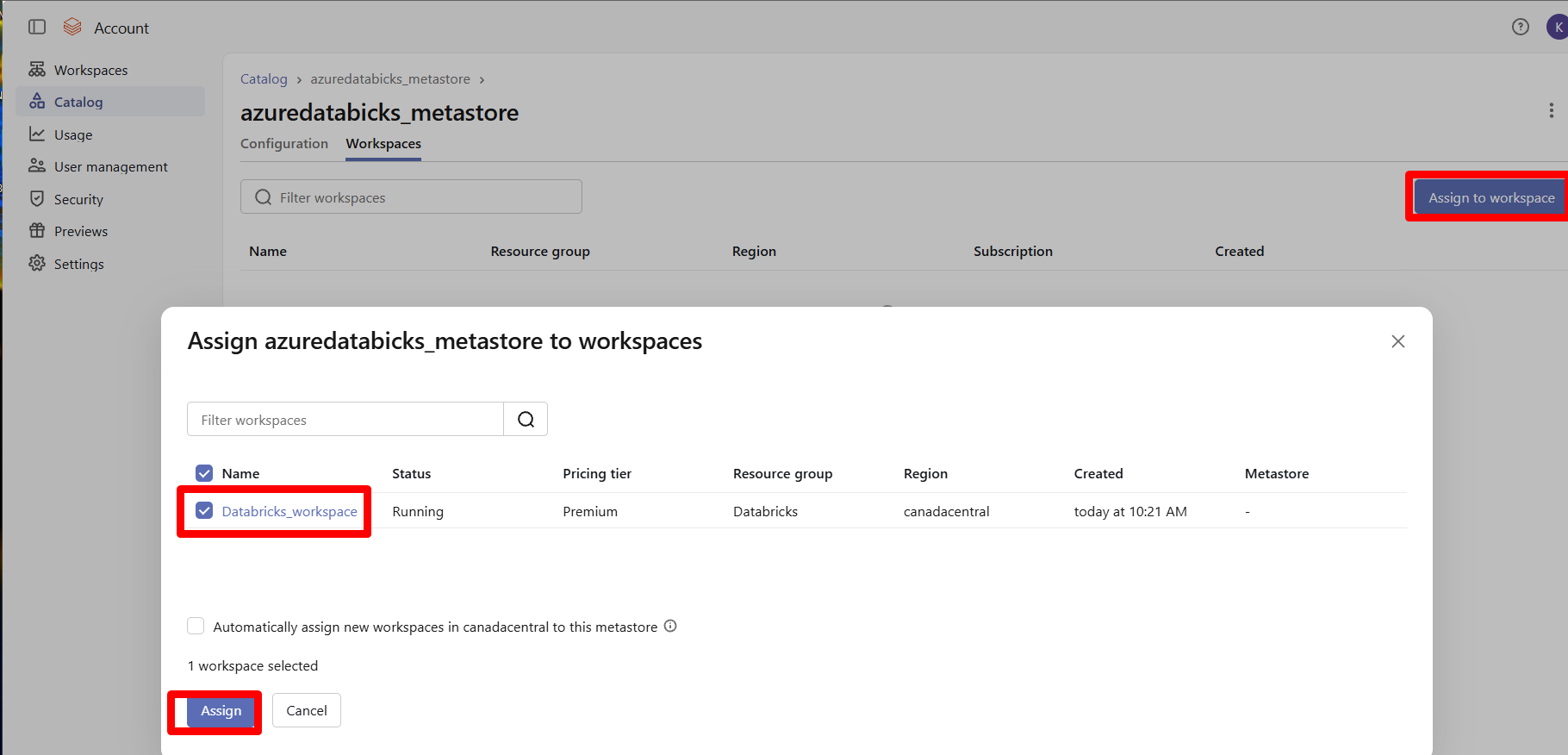
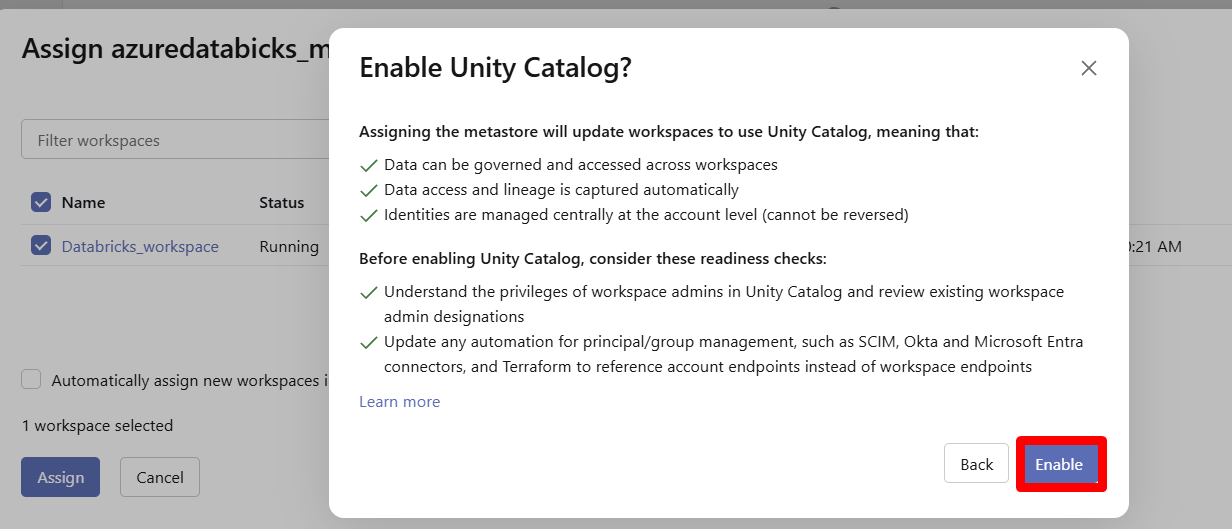
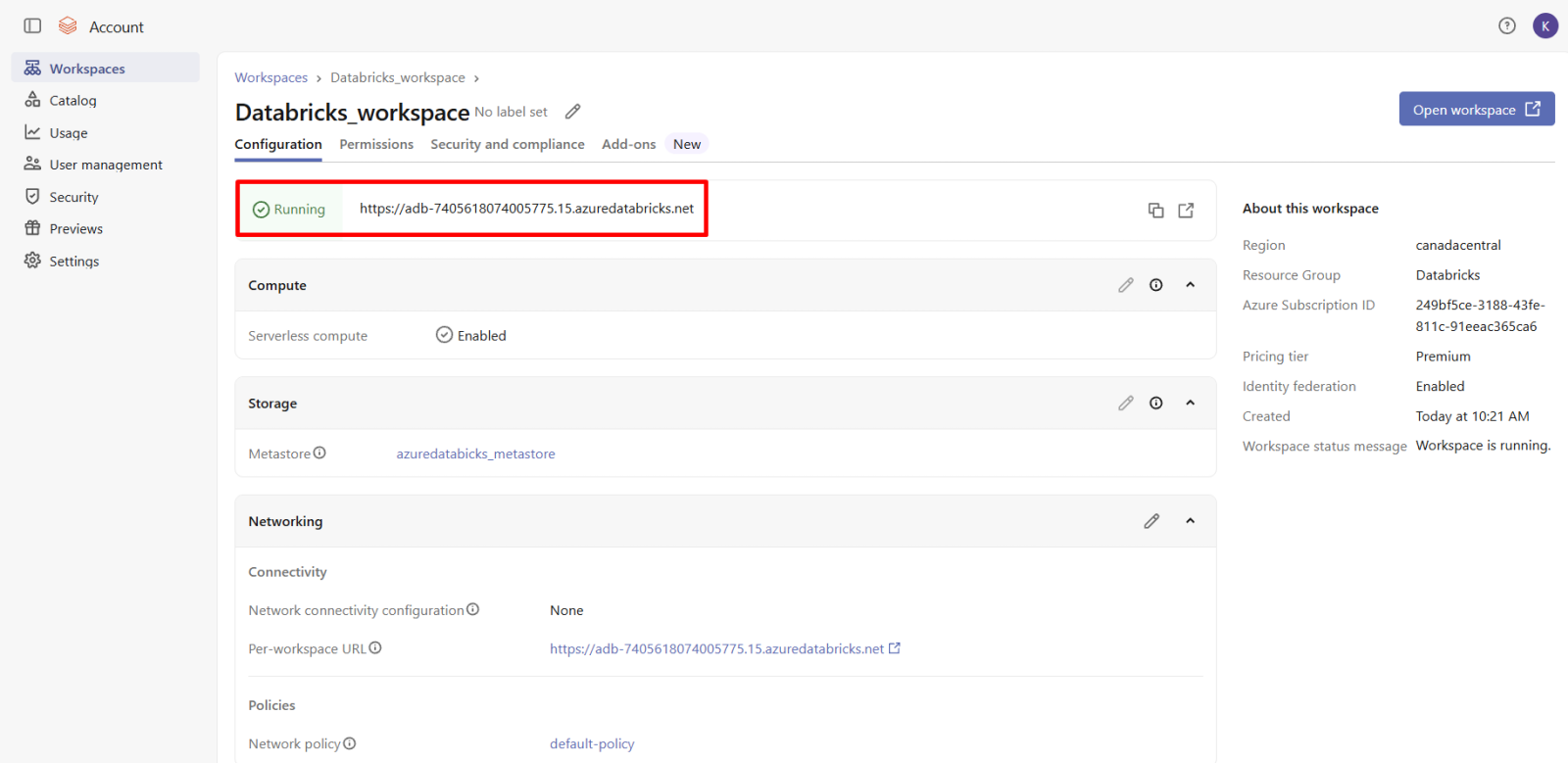
6. Create metastore.
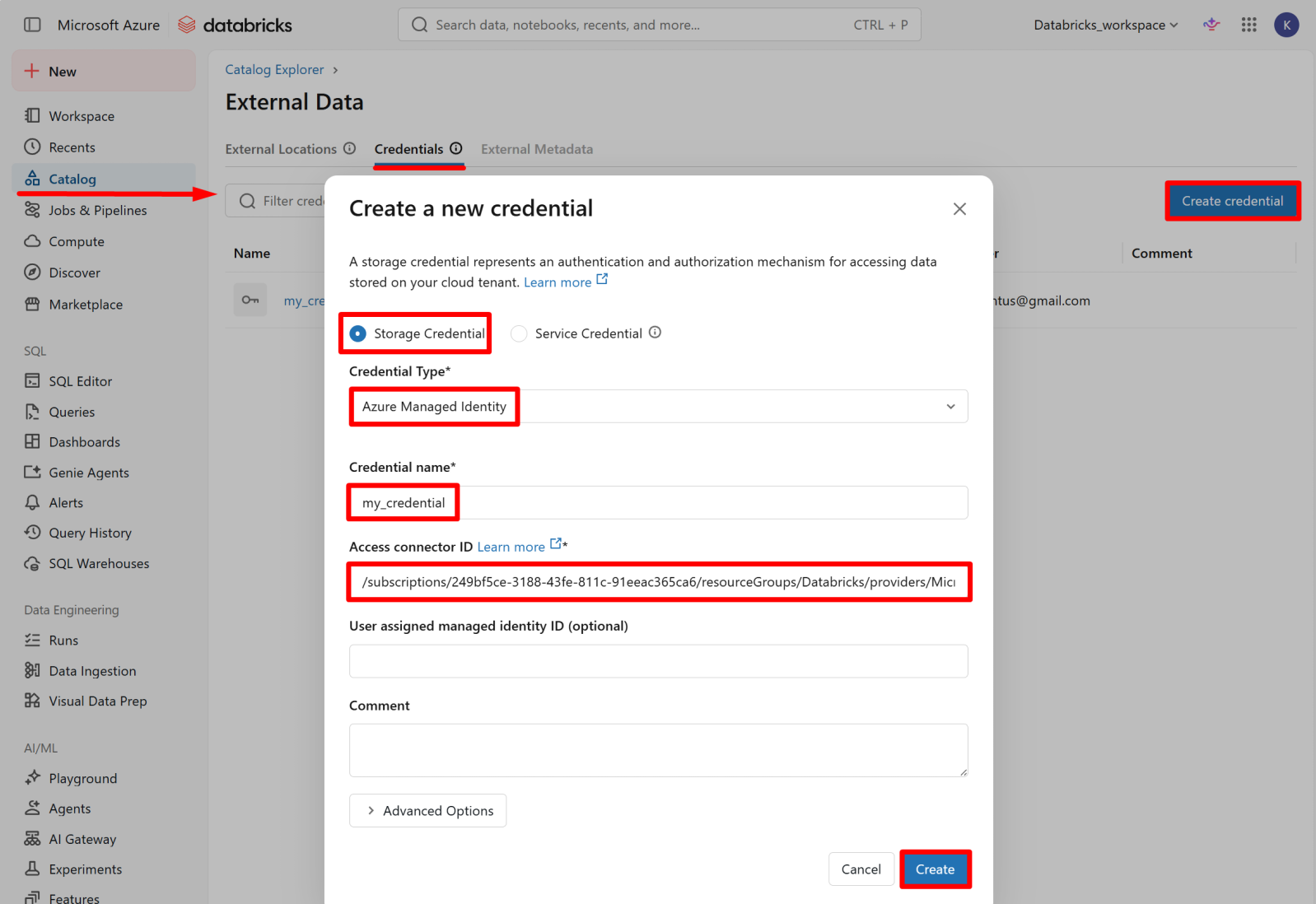
7. Create storage credential.
8. Create external location.
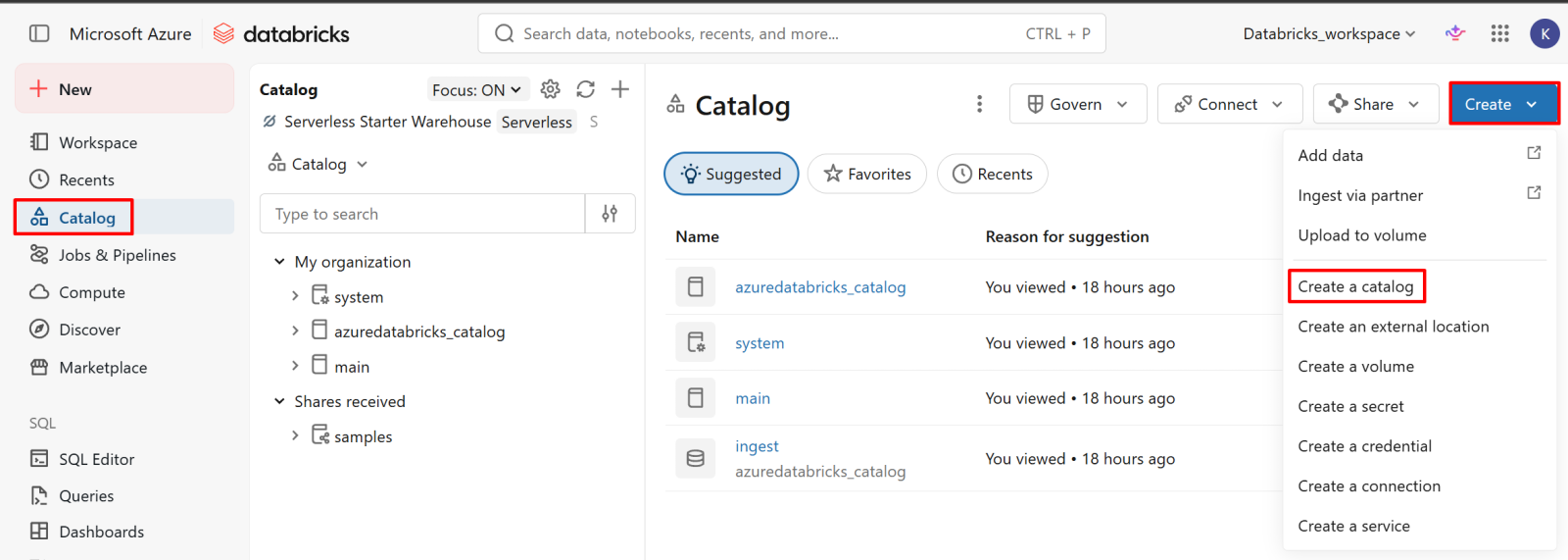
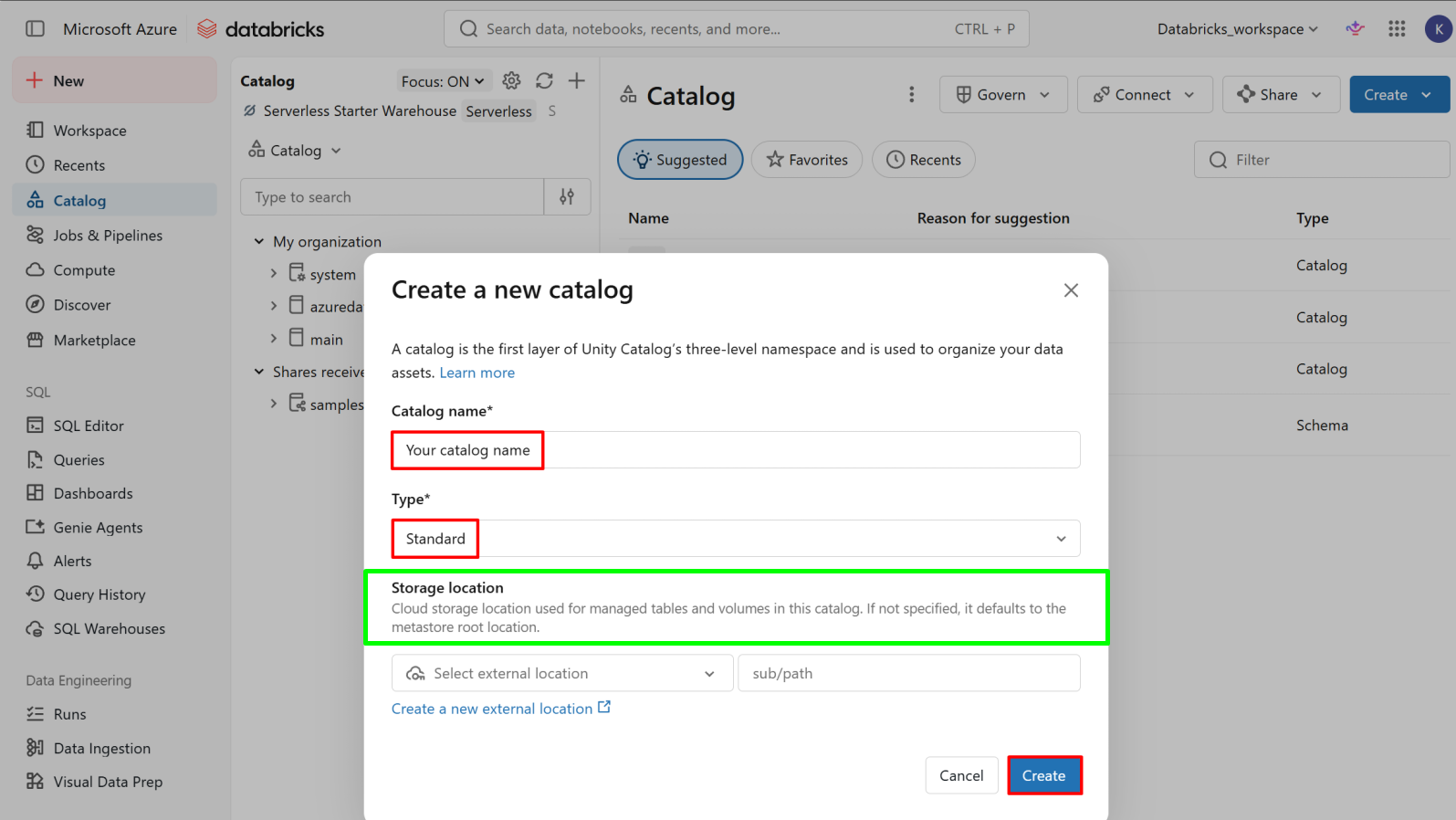
9. Create catalog.
*
Why This Matters
Before Unity Catalog existed, each Databricks workspace ran its own isolated Hive metastore, permissions were scattered per-workspace, storage credentials were often hardcoded into notebooks, and there was no consistent way to audit who accessed what data, when, or from where. That model doesn't hold up under enterprise security and compliance requirements.
The setup in this guide solves that by enforcing:
- No embedded secrets - storage access flows through Managed Identity and Access Connectors, never storage account keys sitting in notebooks or config files.
- Least-privilege by design - even the person who creates the metastore has no implicit rights; every privilege (like CREATE EXTERNAL LOCATION) must be explicitly granted and is fully auditable.
- Centralized governance - one metastore per region, shared across workspaces, so access control and audit logging are consistent no matter which workspace a user connects from.
- Scoped storage access - external locations ensure a credential can only touch the specific paths it's been explicitly authorized for, not an entire storage account.
*
Criticality
Getting this foundation wrong - or skipping steps like the managed identity role assignments or the metastore admin/permission grants - doesn't just cause setup errors (as seen throughout this guide:
NO_PARENT_EXTERNAL_LOCATION_FOR_PATH, could not be found, permission denials). It creates security and compliance gaps that are far harder to fix retroactively once catalogs, tables, and pipelines are already built on top of a poorly governed base.
This is why the setup order matters: identity and access boundaries must exist before any data lands in the platform, not layered on afterward. Everything in later phases - notebooks, SQL warehouses, ingestion pipelines, and fine-grained table permissions - depends on this foundation being correct.
*
Steps
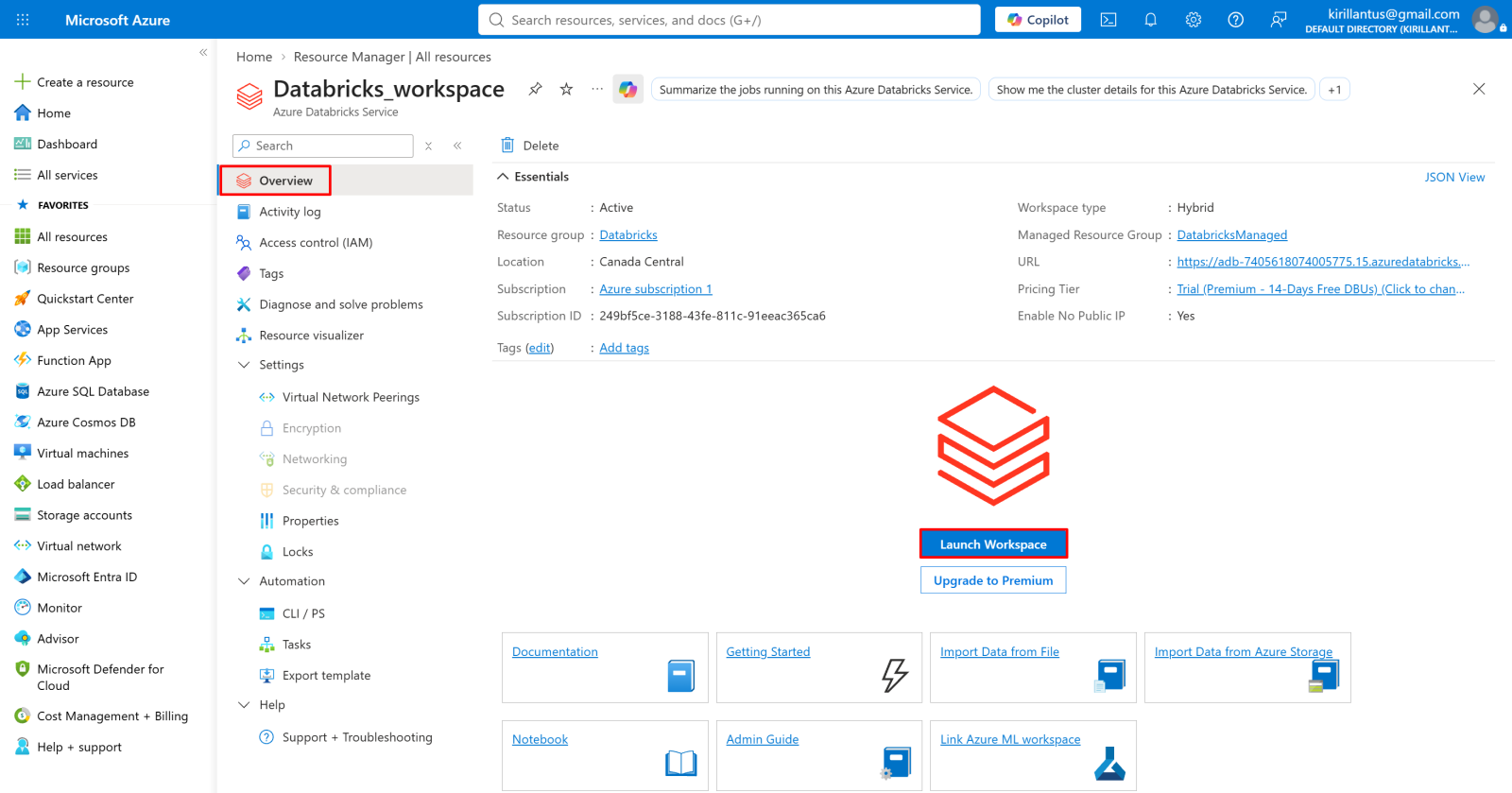
Create a Databricks workspace.
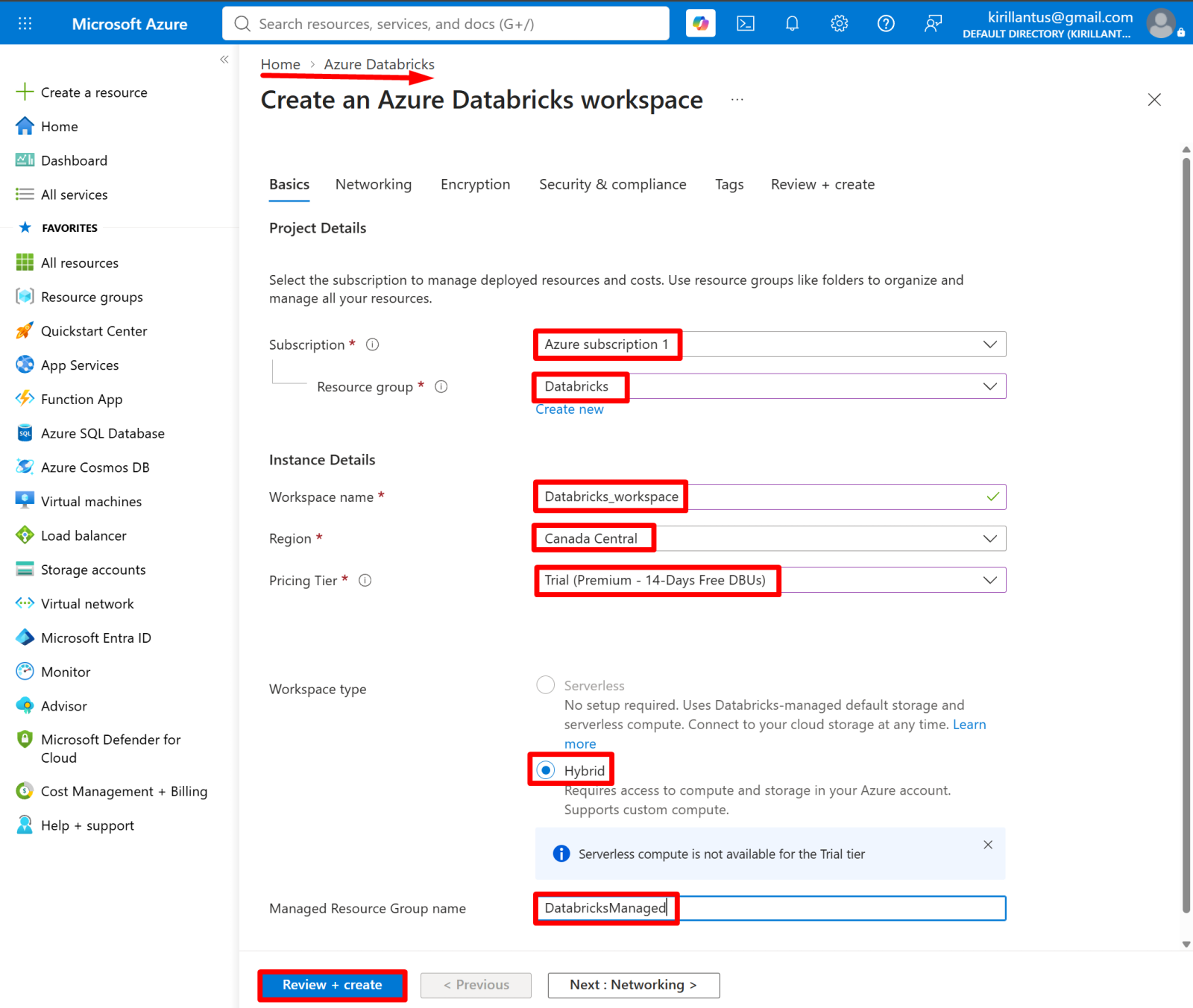
1. Go to Azure Portal → Create a resource → Azure Databricks, then fill in:
- Subscription: your active subscription
- Resource group: create or select one (e.g. Databricks) to organize all related resources
- Workspace name: e.g. Databricks_workspace
- Region: choose the region matching where your metastore will live (e.g. Canada Central)
- Pricing Tier: Trial (Premium) for testing, or Premium/Standard for production
- Workspace type: select Hybrid - required for custom compute and connecting your own Azure storage/networking (Serverless uses Databricks-managed storage and isn't available on Trial tier)
- Managed Resource Group name: auto-generated name for the hidden resource group Databricks uses internally for its infrastructure
*
Create a storage account with containers.
Provide secure, scalable storage for Databricks data, files, and workloads. e.g., metastore, raw, curated - the actual ADLS Gen2 storage Databricks will read/write.
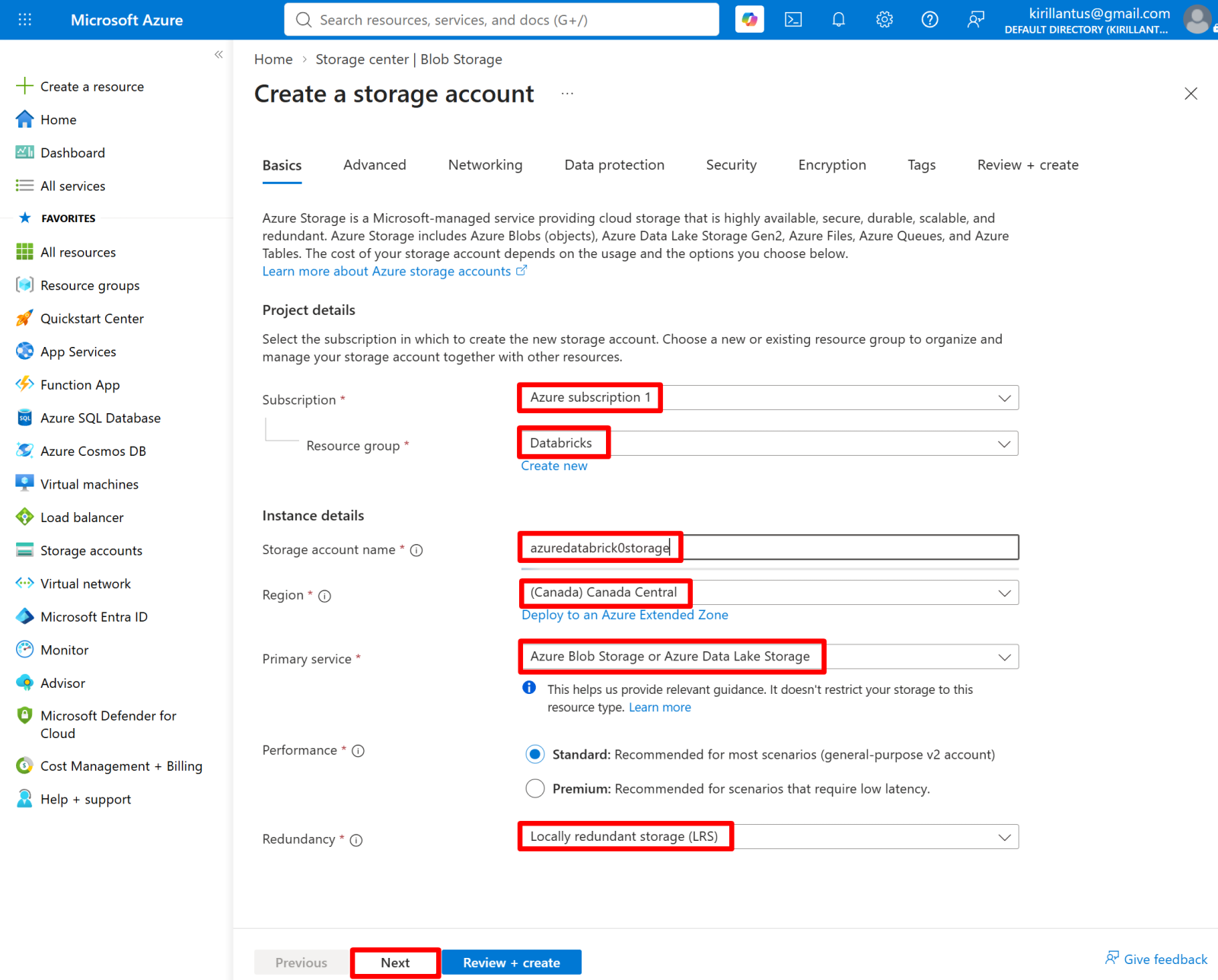
1. Go to Azure Portal → Create a resource → Storage account, then fill in:
- Subscription: same subscription as the workspace
- Resource group: same one used for Databricks (e.g. Databricks), to keep related resources together
- Storage account name: e.g. azuredatabrick0storage (must be globally unique)
- Region: same region as your Databricks workspace (e.g. Canada Central) — critical, since storage and compute/metastore must be region-aligned
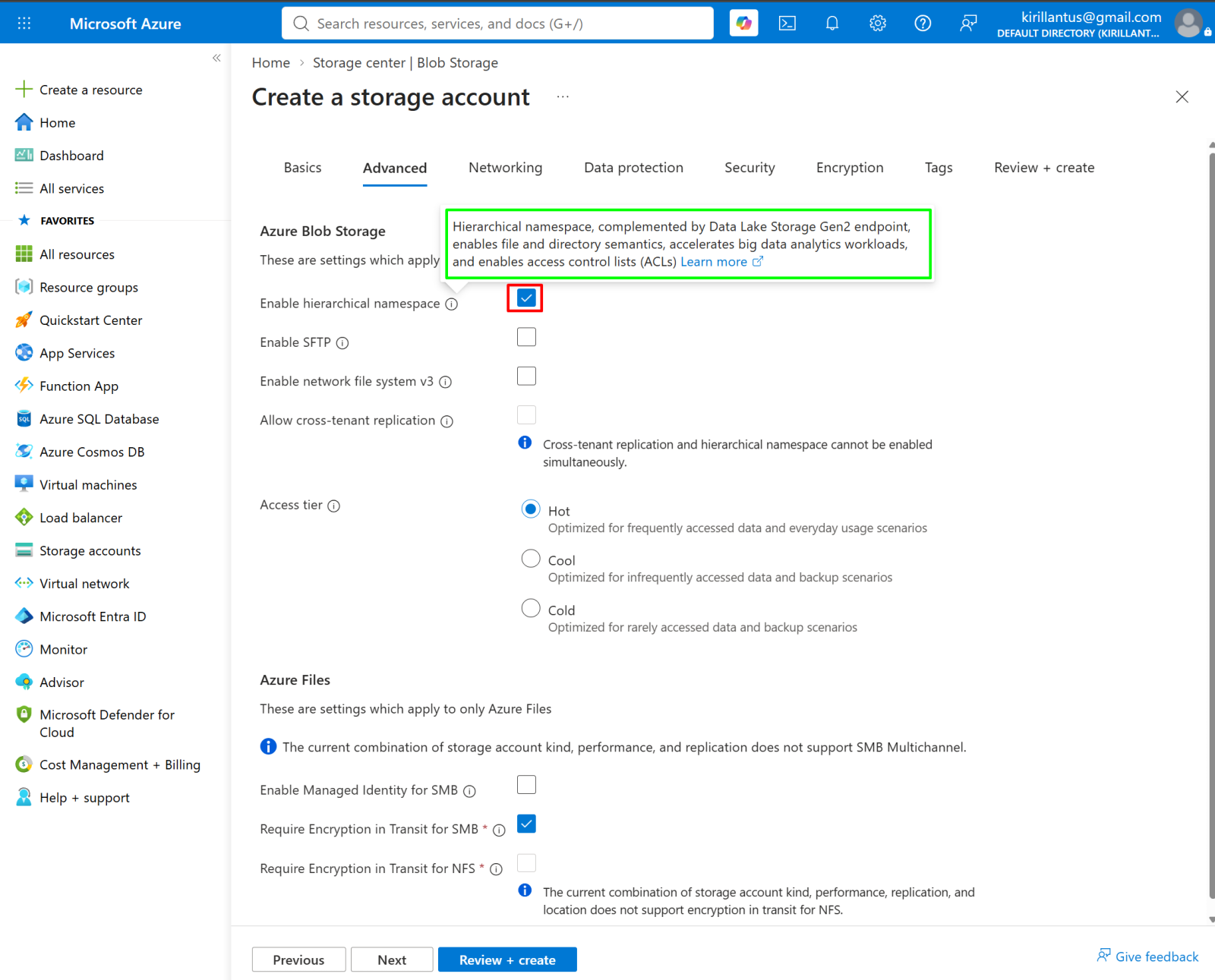
- Primary service: Azure Blob Storage or Azure Data Lake Storage
- Performance: Standard (sufficient for most scenarios)
Redundancy: Locally redundant storage (LRS) — lowest-cost option, fine for dev/test
Click Next to proceed to the Advanced tab, where you'll enable hierarchical namespace (required for ADLS Gen2) before creating.
*
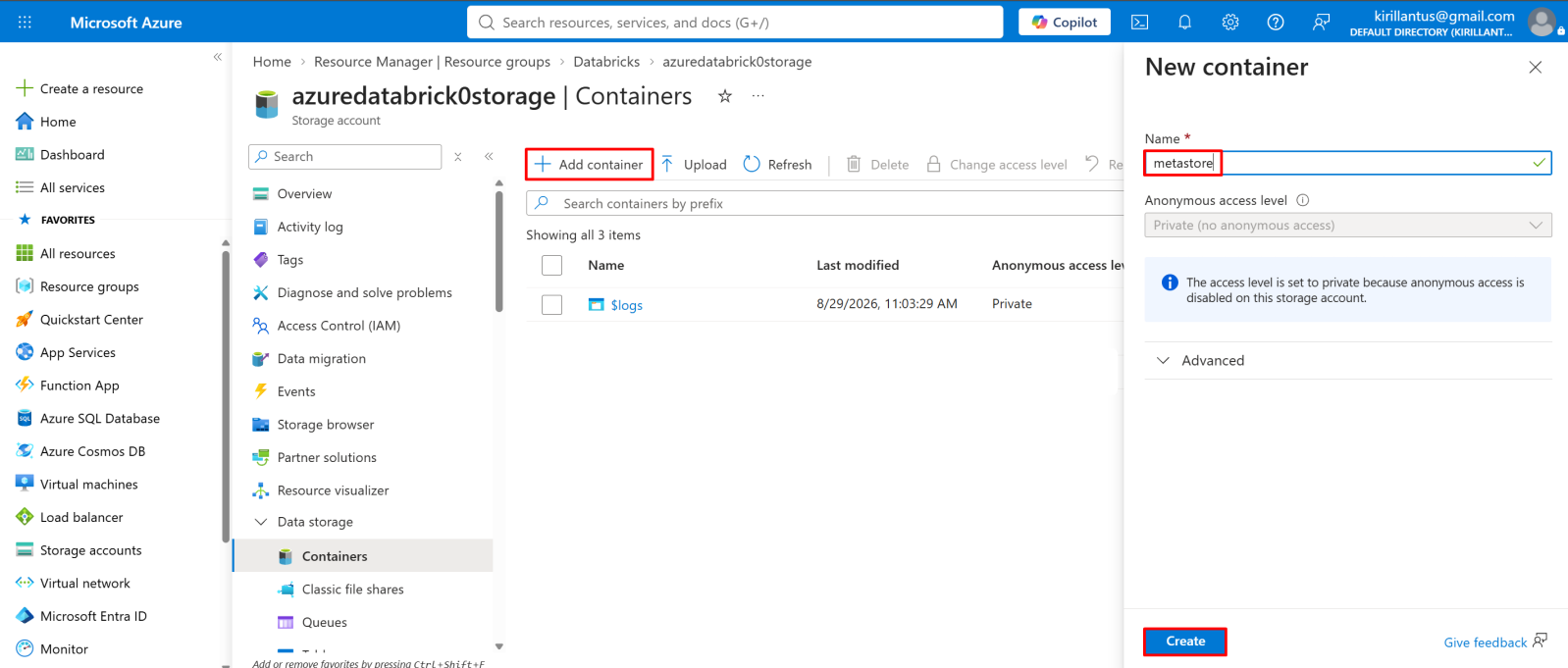
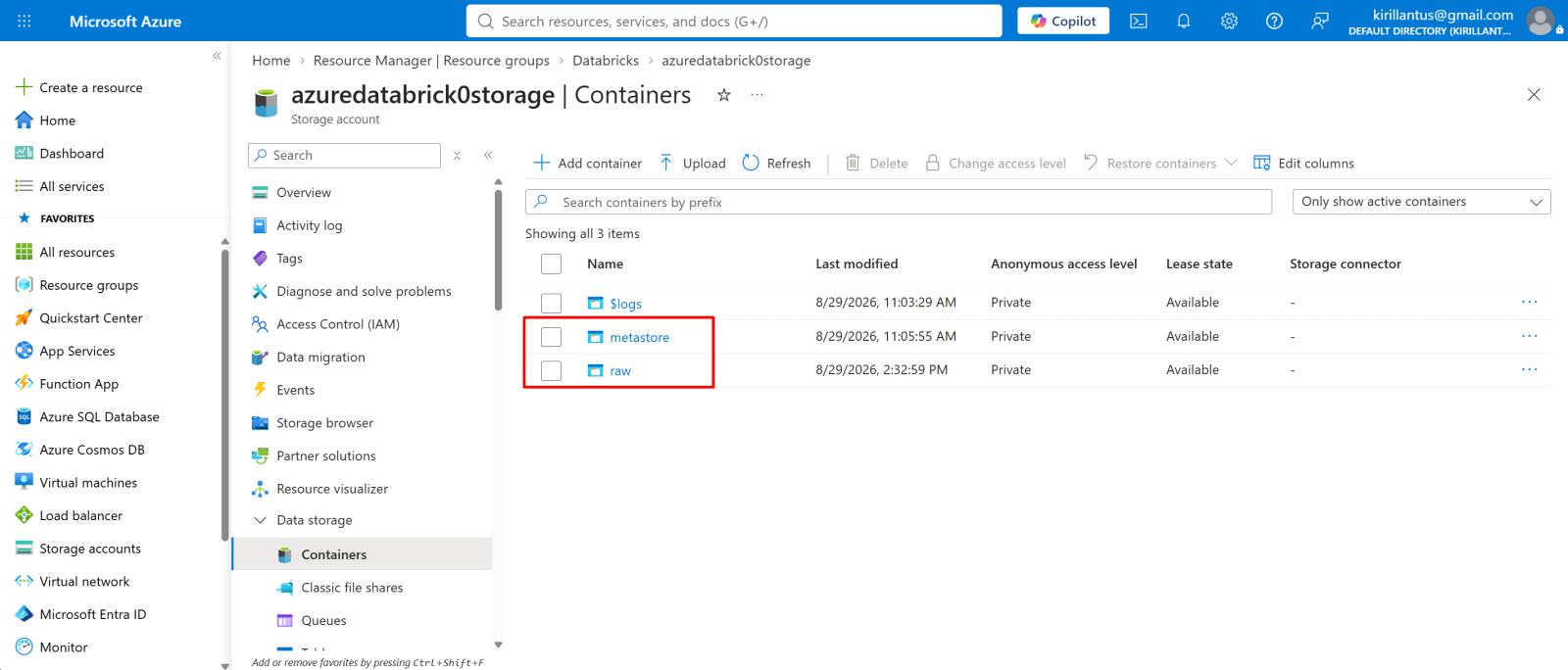
2. Create two containers: metastore and raw
- Go to your storage account → Containers → Add container
*
*
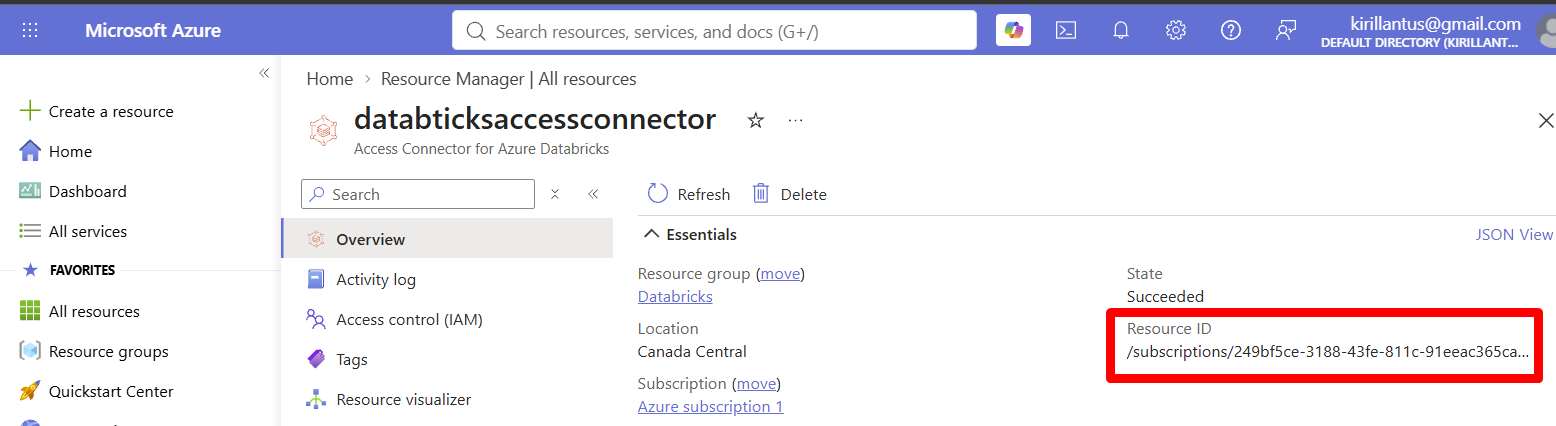
Create Access Connector for Databricks
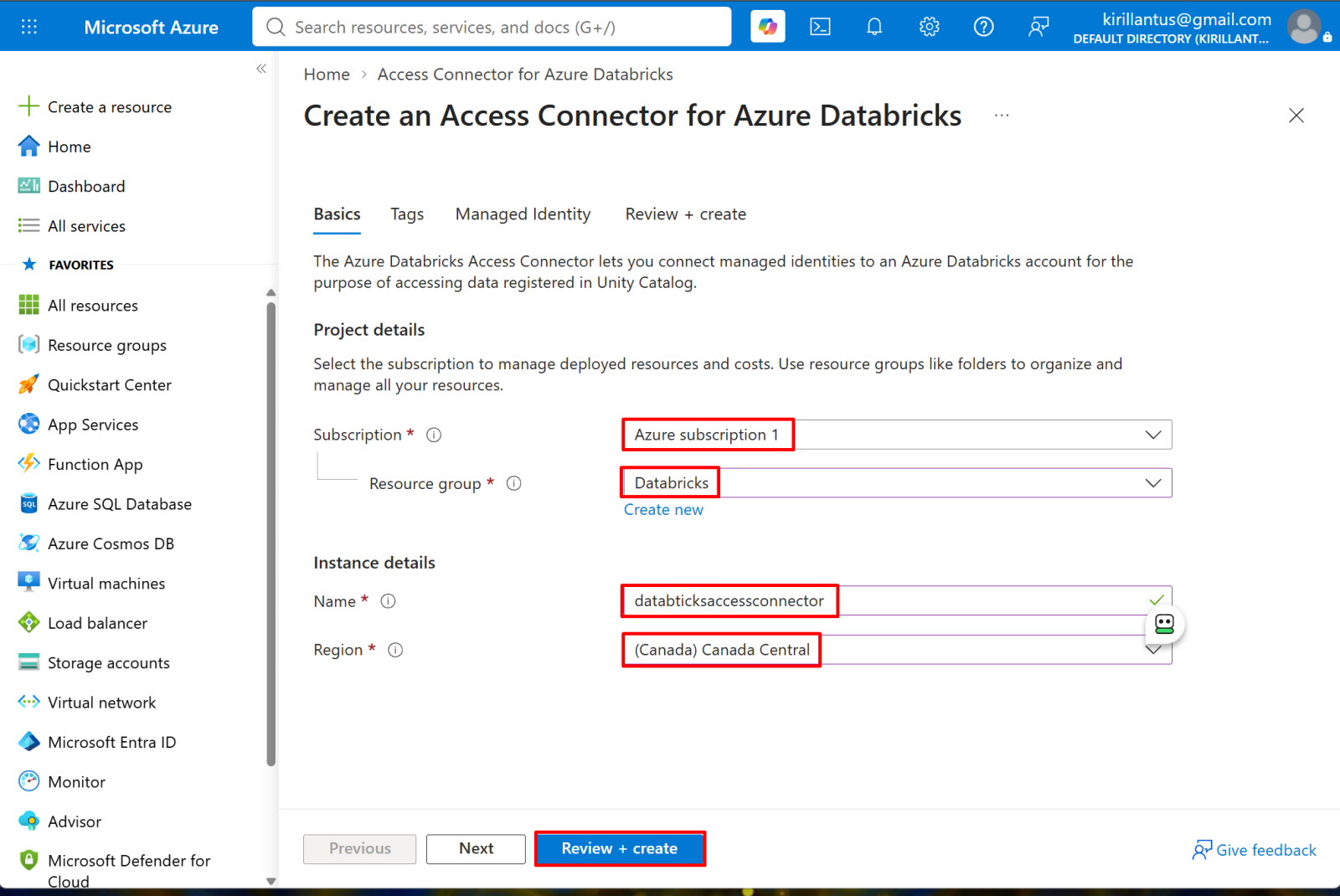
To enable Databricks to securely access Azure Storage using managed identity, eliminating the need to store or manage storage account access keys while providing controlled access to data.
- Search for "Access connector for Azure Databricks," then fill up the details and click "Review and create"
*
Grant the Access Connector's managed identity a role.
This step is easy to miss but required, or every later step throws permission errors.
To authorize the Access Connector’s managed identity to access the required Azure Storage resources, allowing Databricks to securely read and write data without using storage account keys.
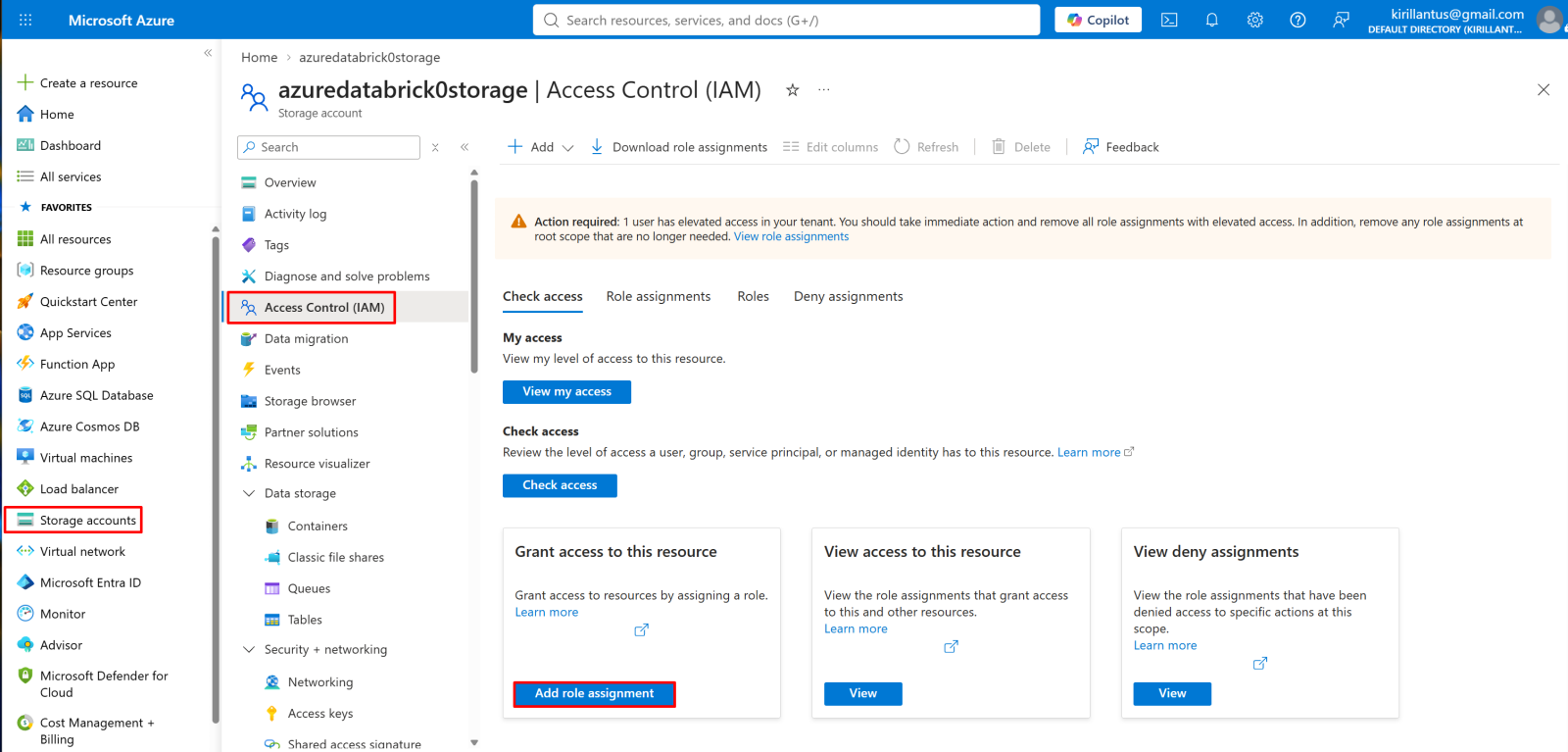
1. Go to your storage account.
Access Control (IAM) → Add role assignment
*
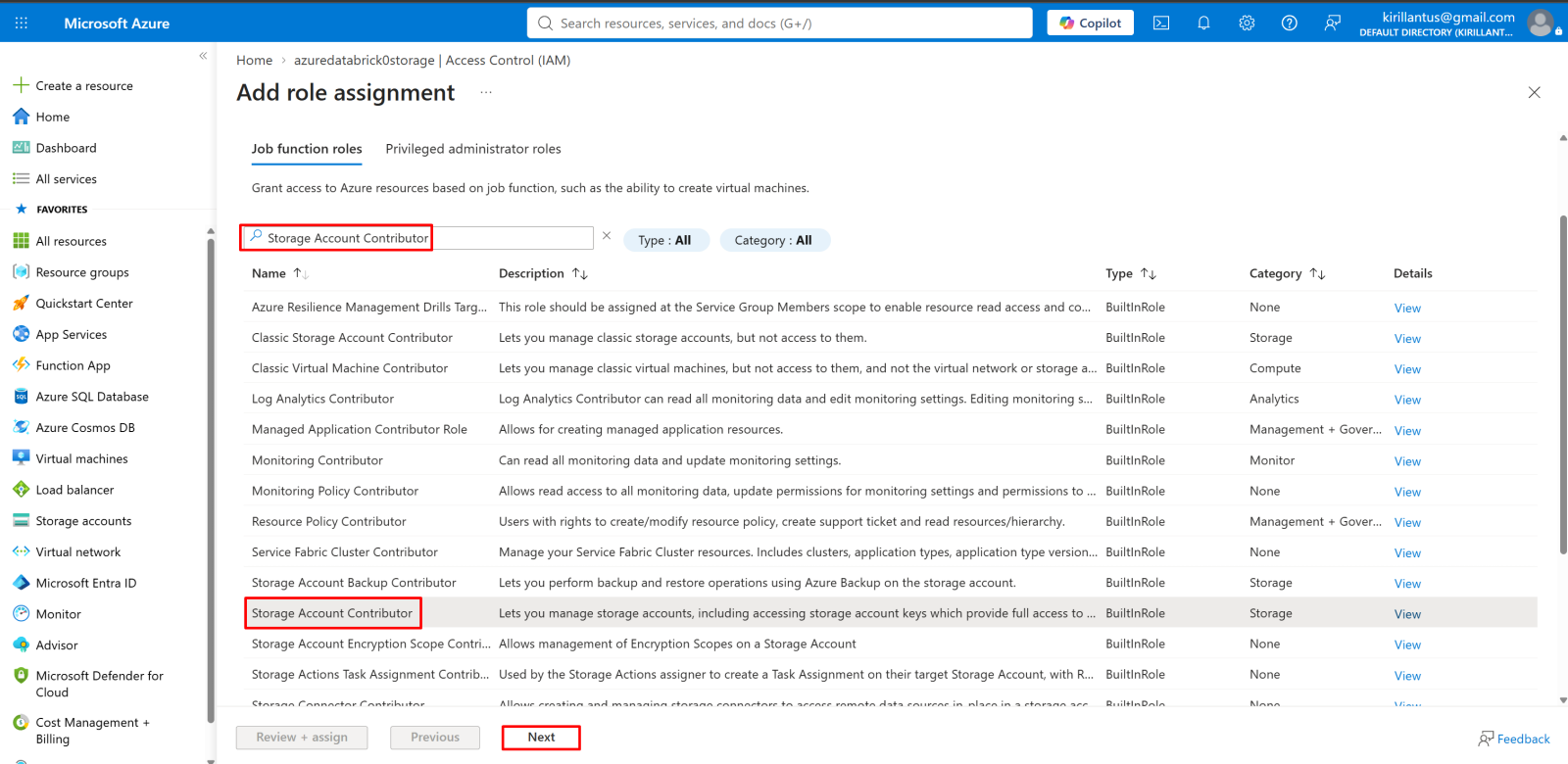
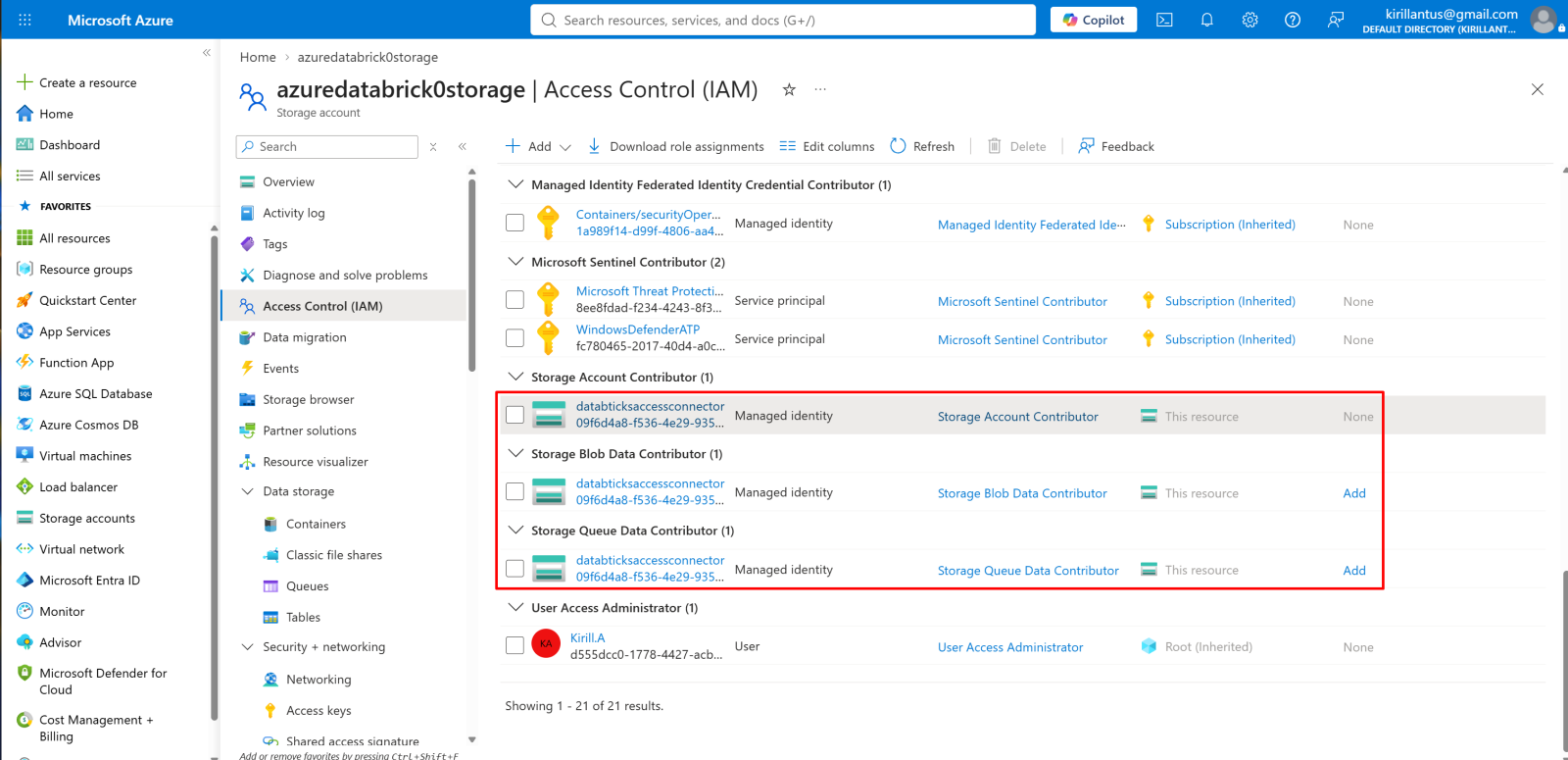
2. Add 3 roles to the managed identity of the Databricks access connector.
On the storage account → Access Control (IAM) → Add role assignment → Job function roles tab, search for and select each role one at a time:
- Storage Account Contributor → manages the storage account itself (metadata, configuration)
- Storage Blob Data Contributor → read/write files
- Storage Queue Data Contributor → required for Event Grid/Auto Loader file notification
Click Next after selecting a role, then on the Members tab choose Managed identity → select your Access Connector (e.g. databticksaccessconnector) → Review + assign.
Note: Repeat this full process for each of the 3 roles individually - Azure requires a separate role assignment per role..
*
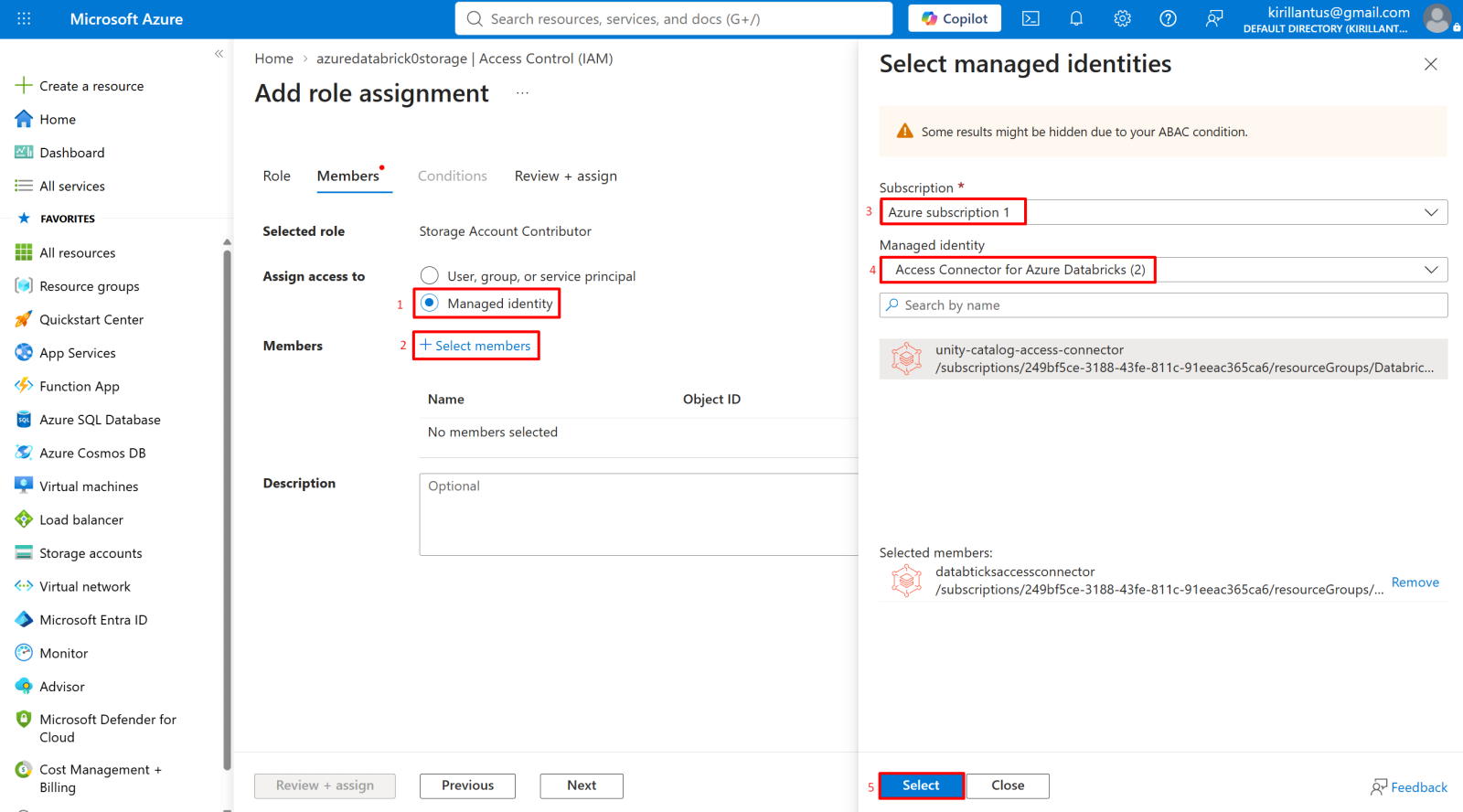
3. Assign the managed identity as the member
On the Members tab:
- Under Assign access to, select Managed identity
- Click + Select members
- In the panel that opens, choose your Subscription
- Under Managed identity, filter by Access Connector for Azure Databricks
- Select your connector (e.g. databticksaccessconnector) from the list, then click Select
Click Review + assign to finalize.
Note: Repeat this Members step for each of the 3 roles (Storage Account Contributor, Storage Blob Data Contributor, Storage Queue Data Contributor).
*
*
Enable admin account in Databricks console.
1. Enable account admin to your user in Account console
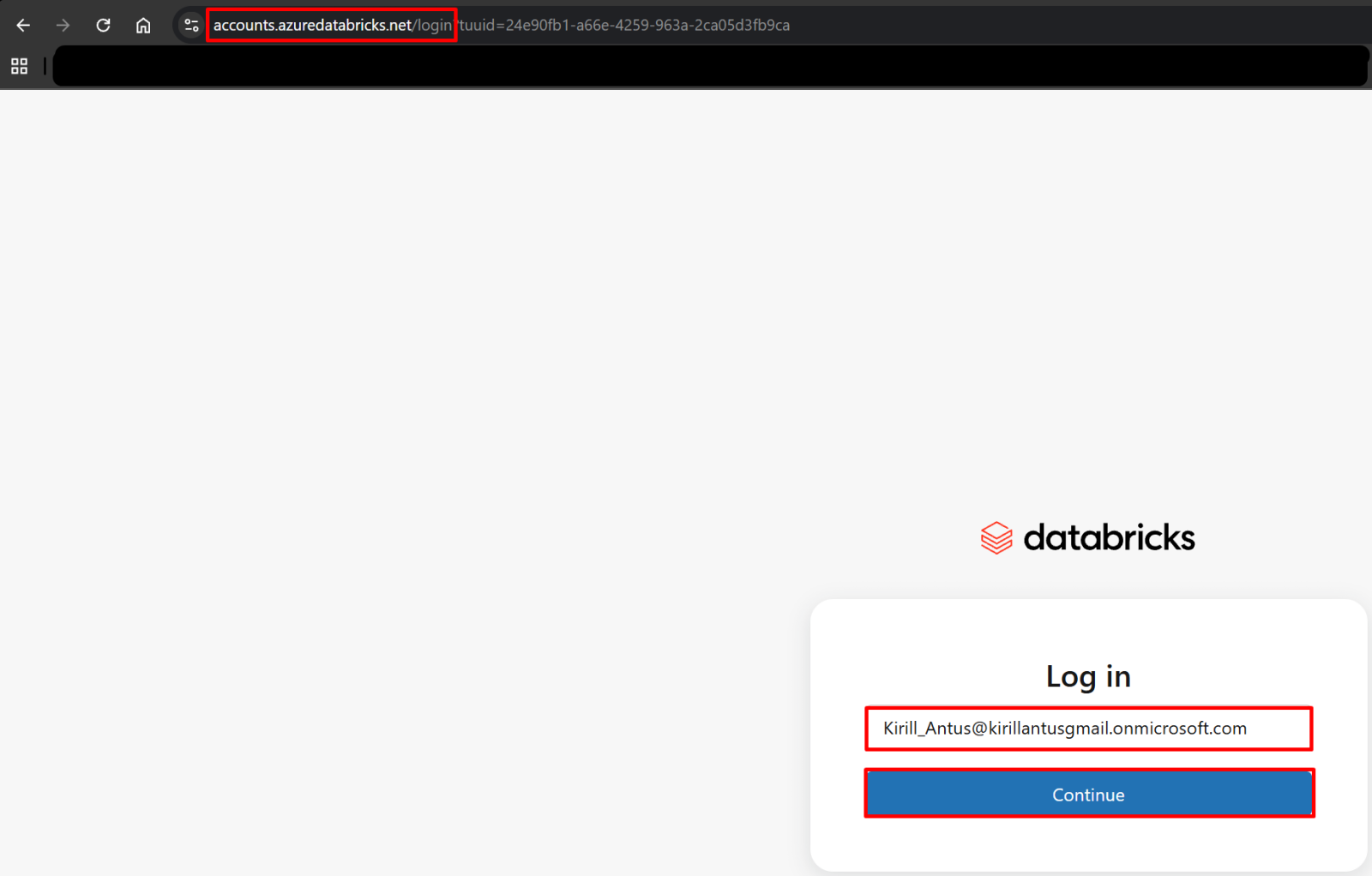
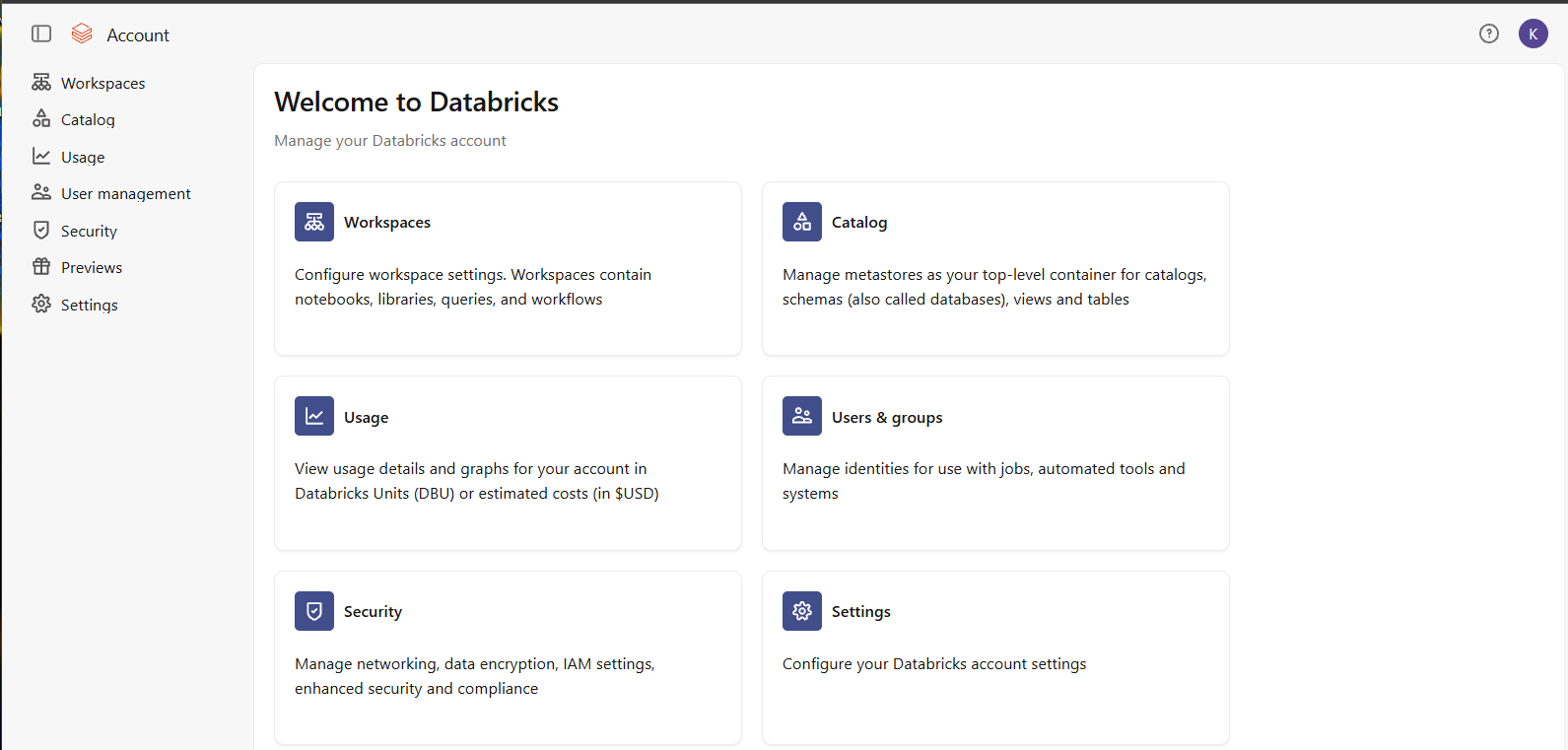
Login as Entra Id user at http://accounts.azuredatabricks.net/login
*
*
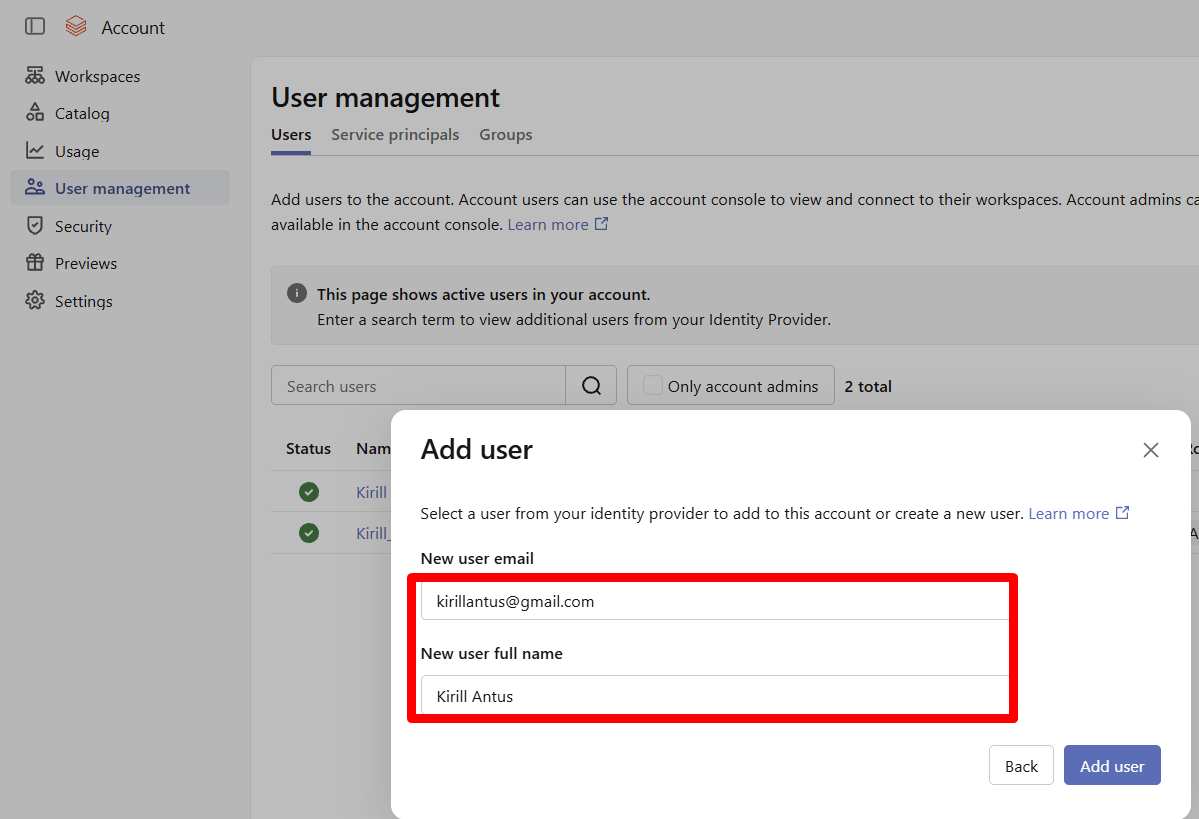
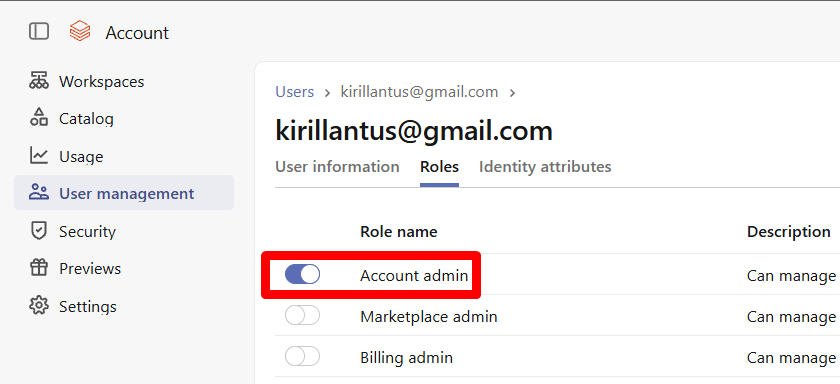
2. Enable Account Admin to your Databricks user.
Go to user management, then select/add the user.
*
*
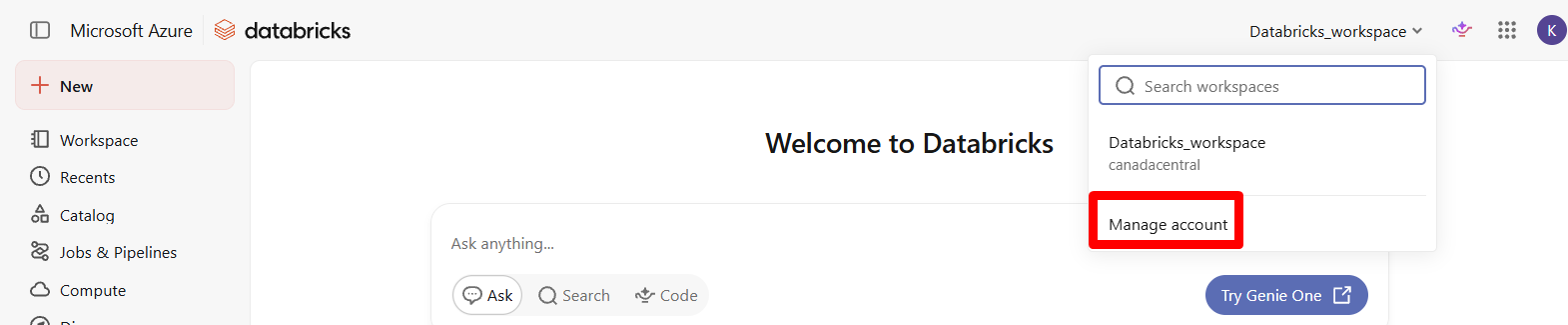
3. In the Databricks portal, you will see the Manage account option available.
*
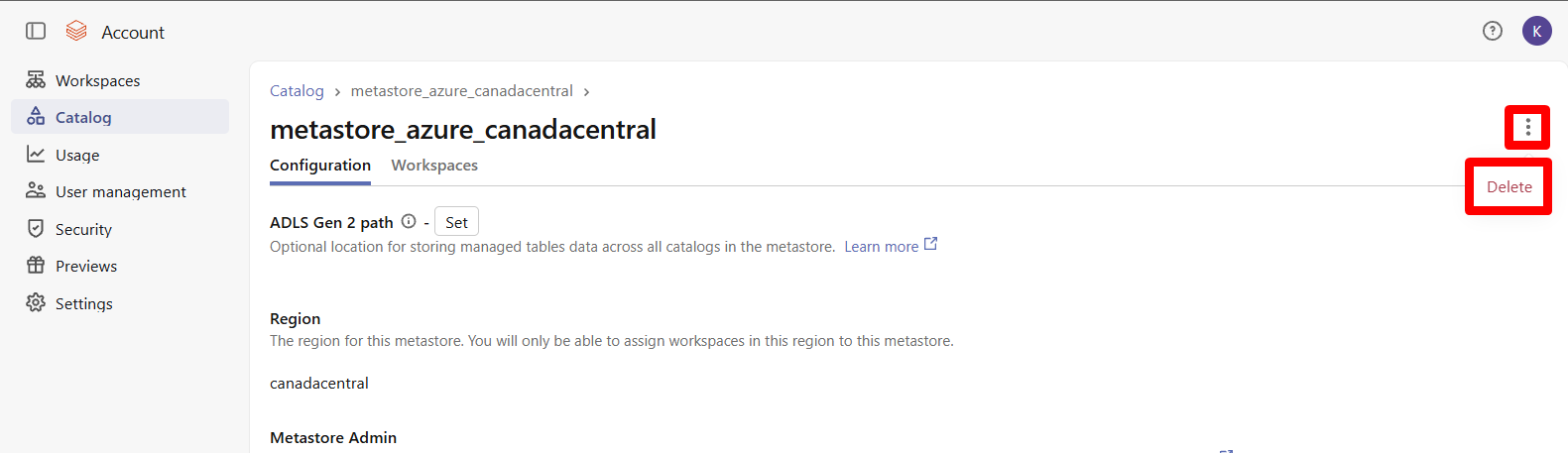
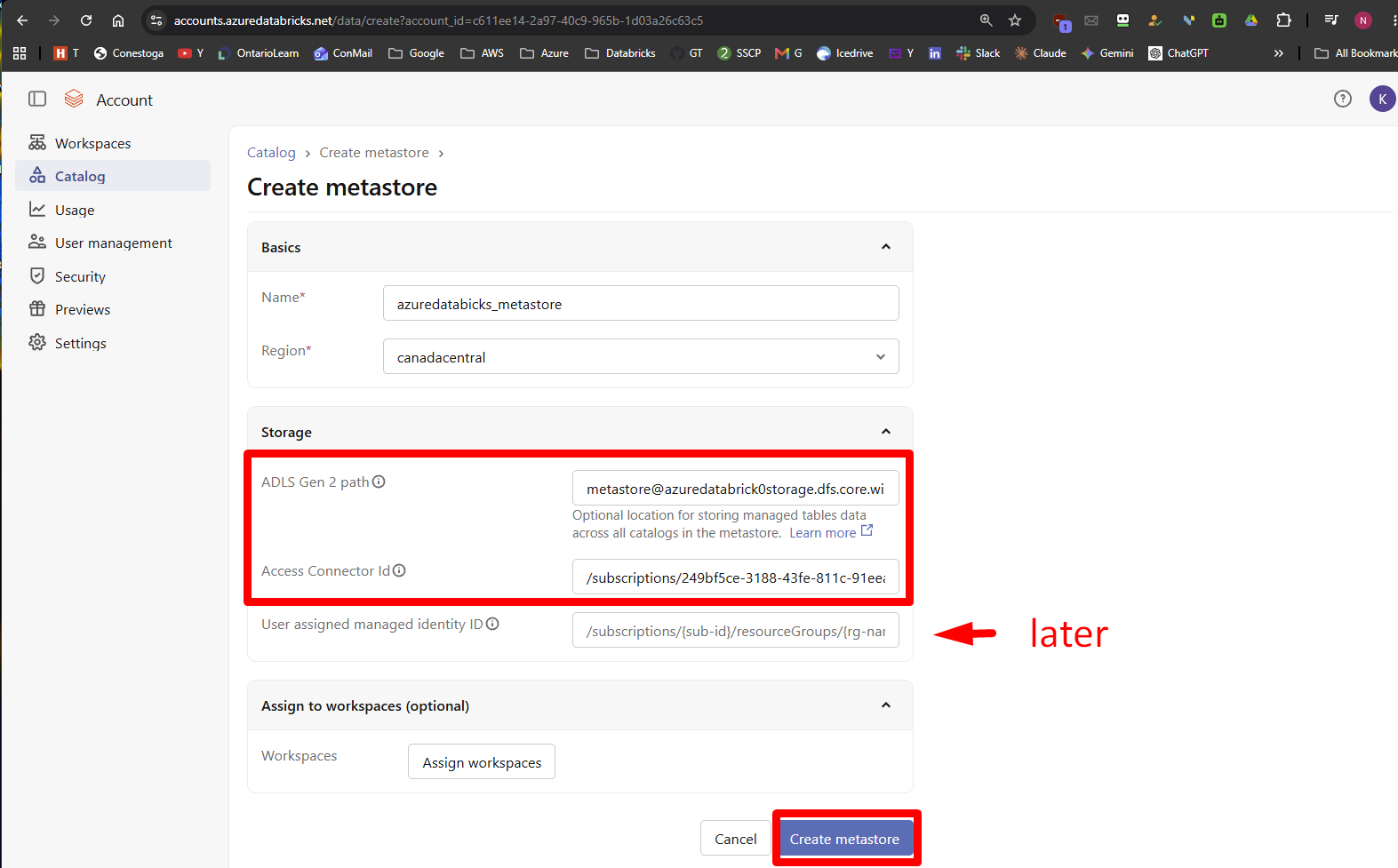
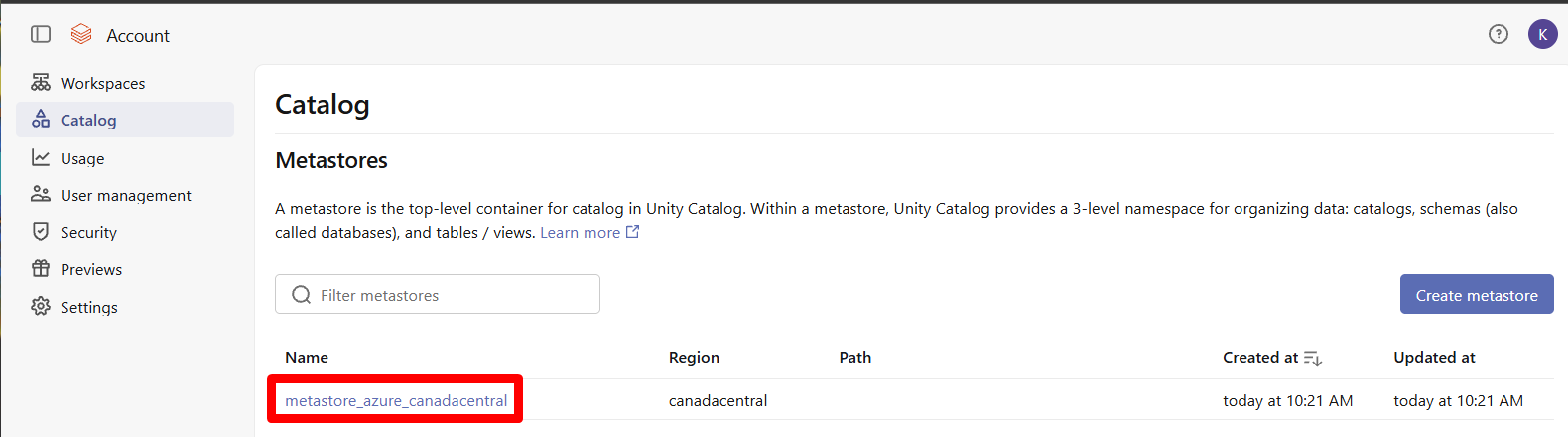
4. In the Databricks console, delete the auto-created metastore and create a new one.
Replace the automatically created metastore with a properly configured Unity Catalog metastore, giving centralized control over data, permissions, and governance across the Databricks workspace.
*